Chaise · Staff handbook
Every screen in the app, and what each one does.
Written for the people working in the shop: the owner at the counter and the stylist at the chair. Each screen gets a picture and a short explanation.
66 screens. The pictures come from a real shop with a real day in it; the names and numbers are made up.

How do I…
The jobs people actually open the app to do, start to finish. Every screen in the app is written up underneath.
Getting into the app the first time
Your shop adds your number, then texts you to install the app. There is no password and no account to create.
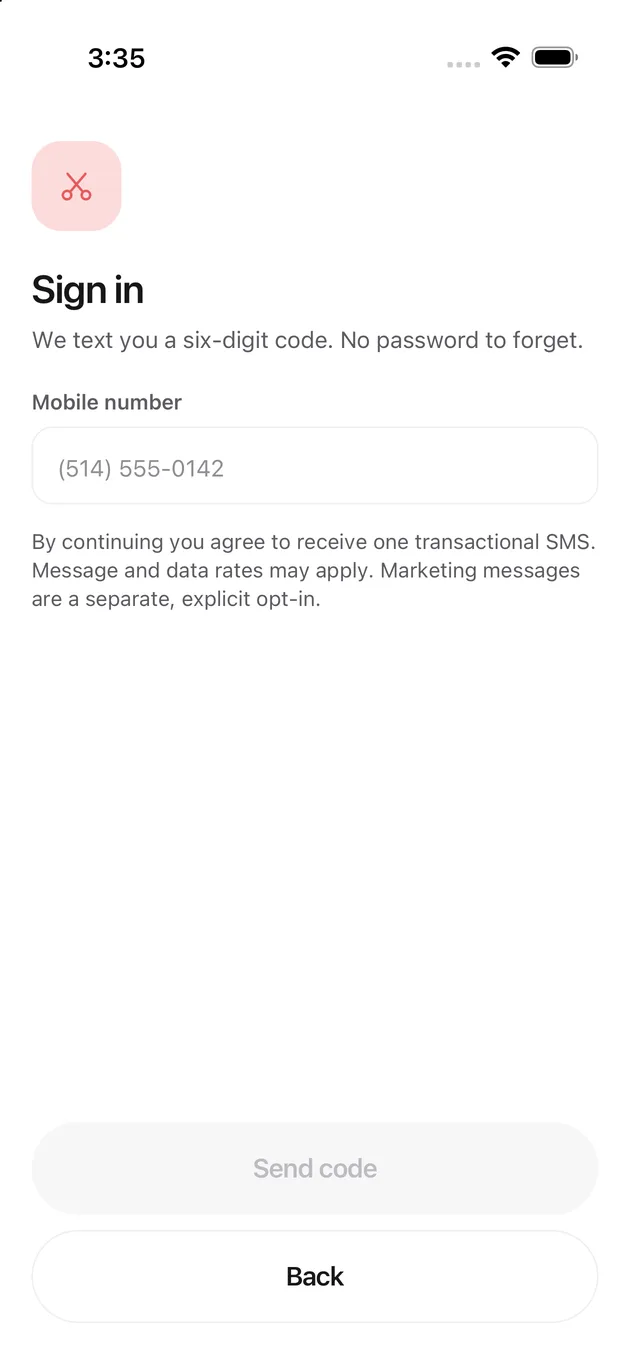
Put your number in
Your mobile number is your account. Tap Send code.
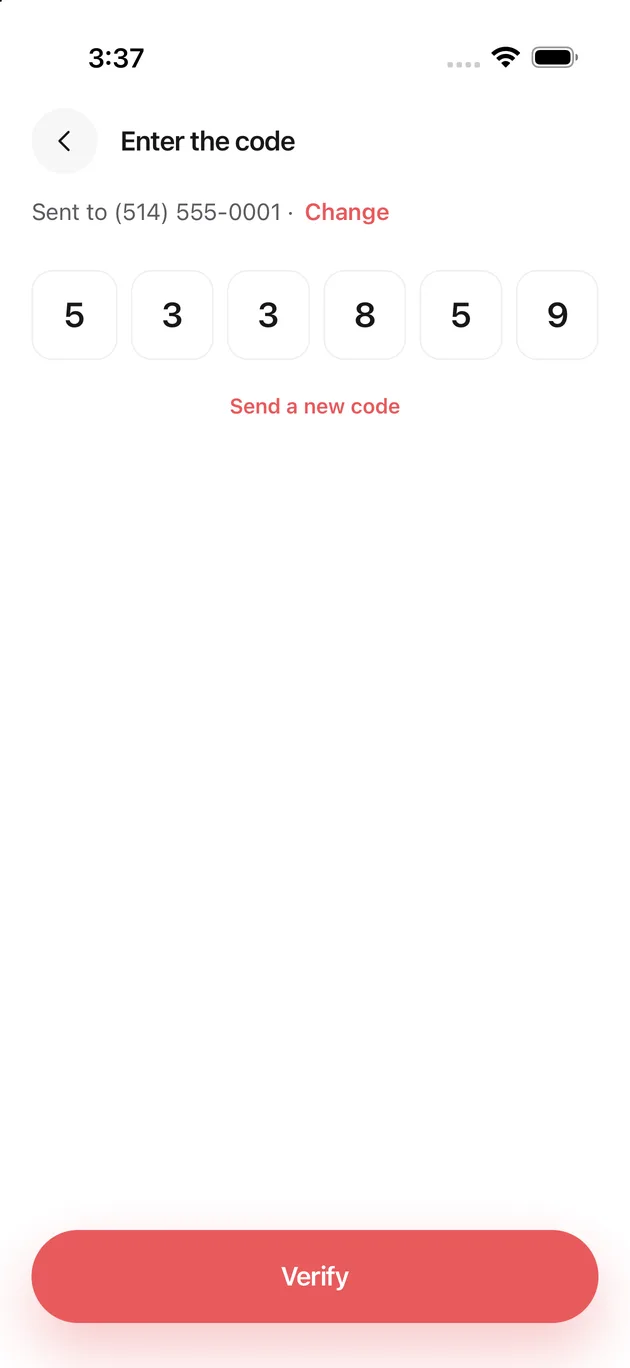
Type the six digits
The code arrives by text in a few seconds. Five wrong guesses kills it and sends you back.
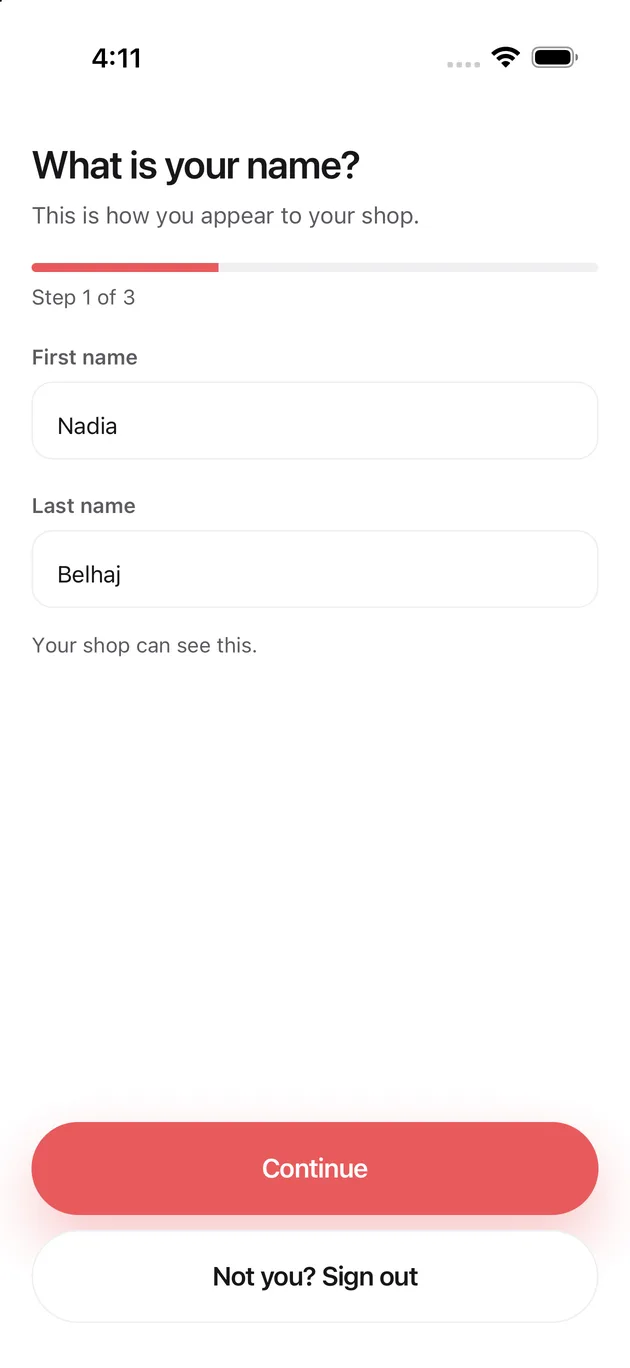
Say who you are
This is the name your shop sees and the name on a client's booking.
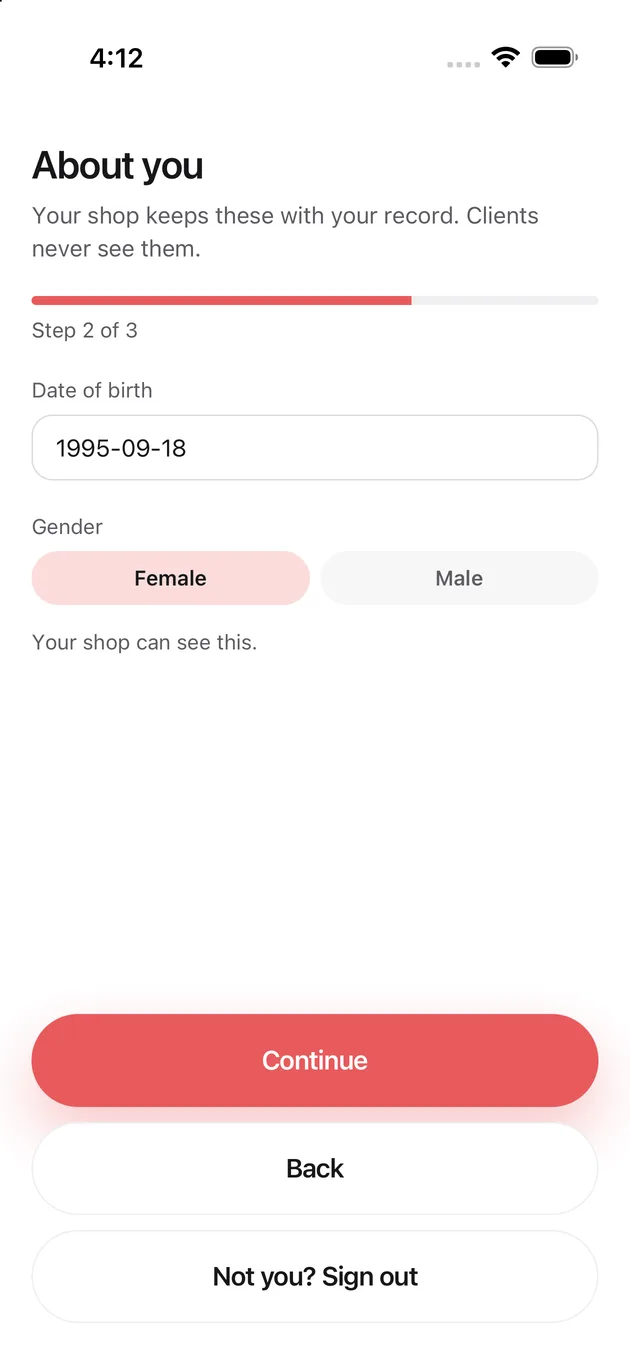
Your details
Date of birth and gender. Your shop keeps these; clients never see them.
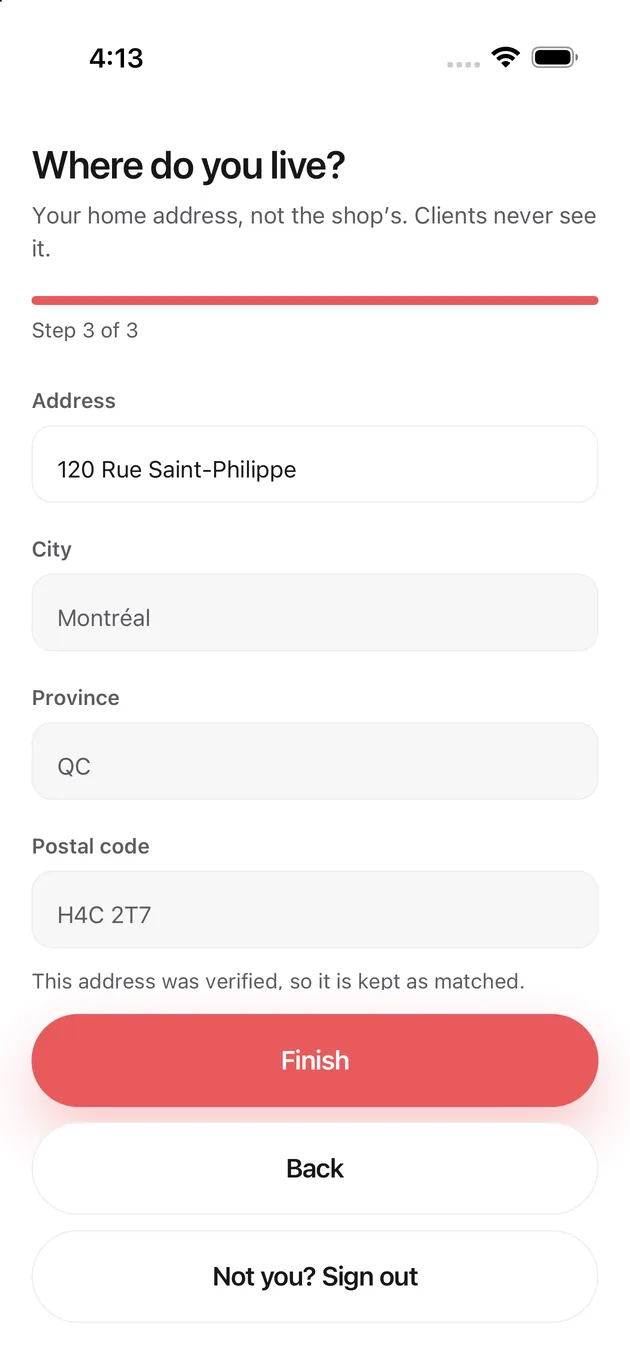
Where you live
Start typing and pick your address from the list. This is your home address, not the shop's, and no client ever sees it.
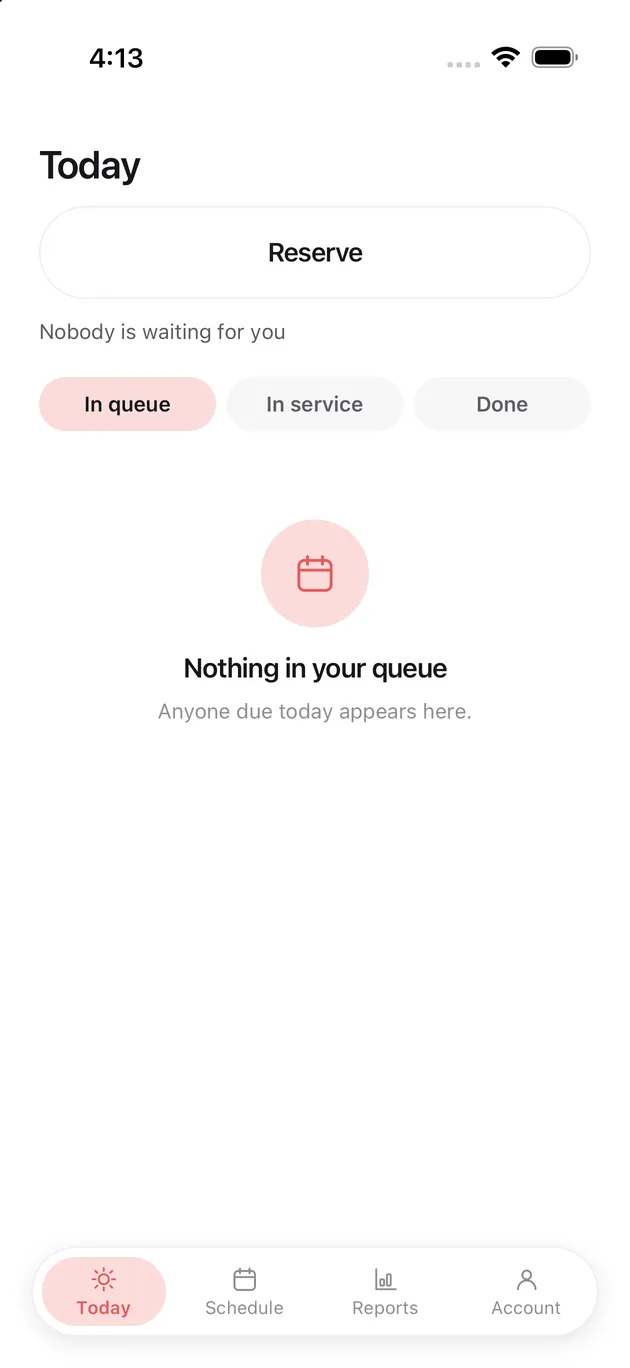
That is it
Finish lands you on your own day. You never see these screens again.
Booking somebody at the counter
Somebody is standing in front of you, or on the phone, and needs to go on the day.
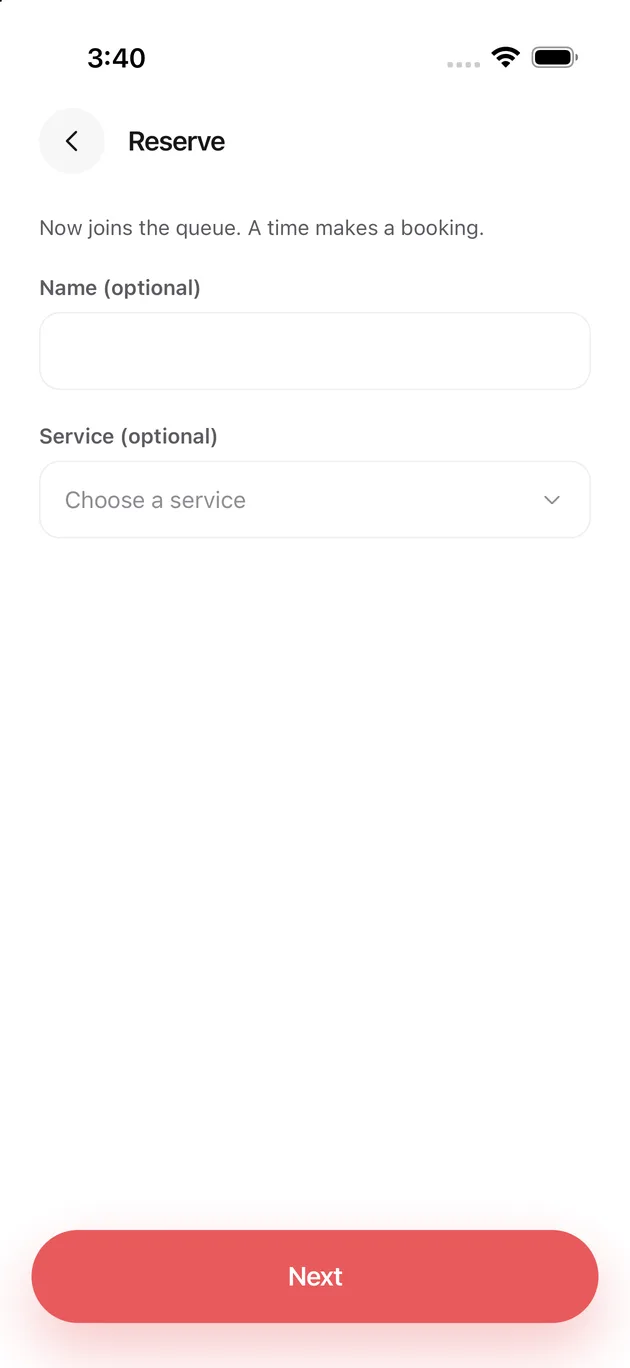
Tap Reserve
Both fields are optional, so somebody who has not decided what they want is still a row on the counter.
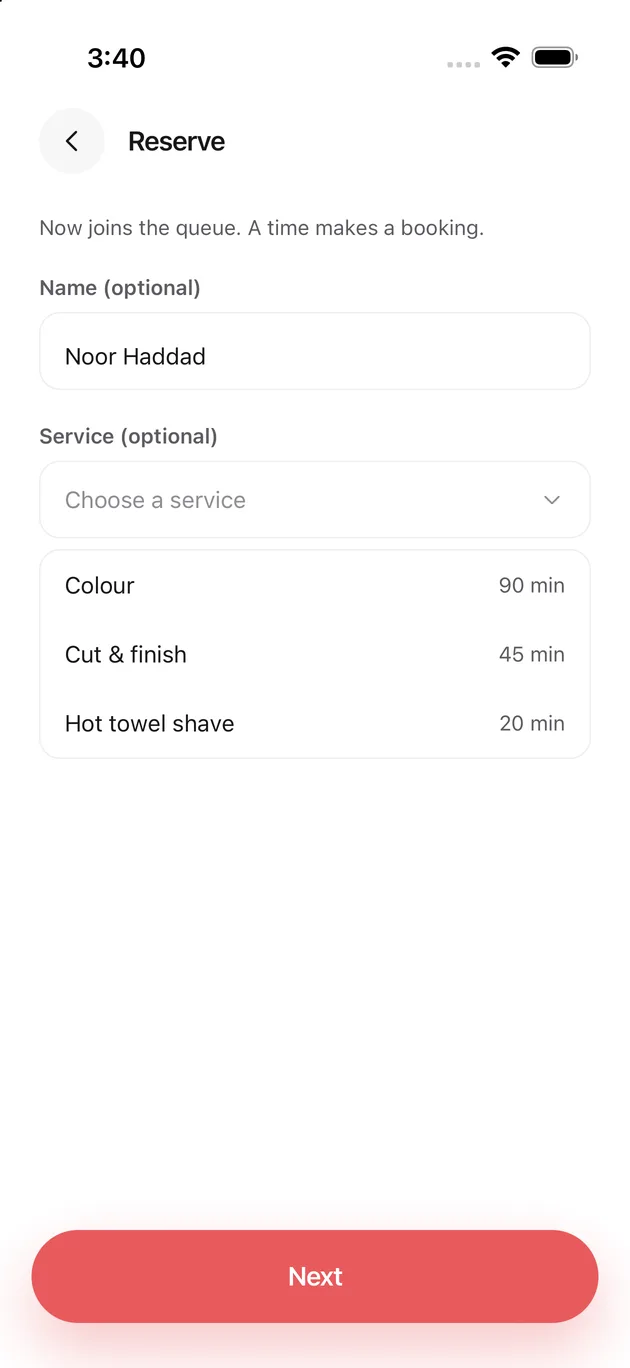
Pick the service
The shop's list, with how long each one takes. That length is what the wait estimate is built from.
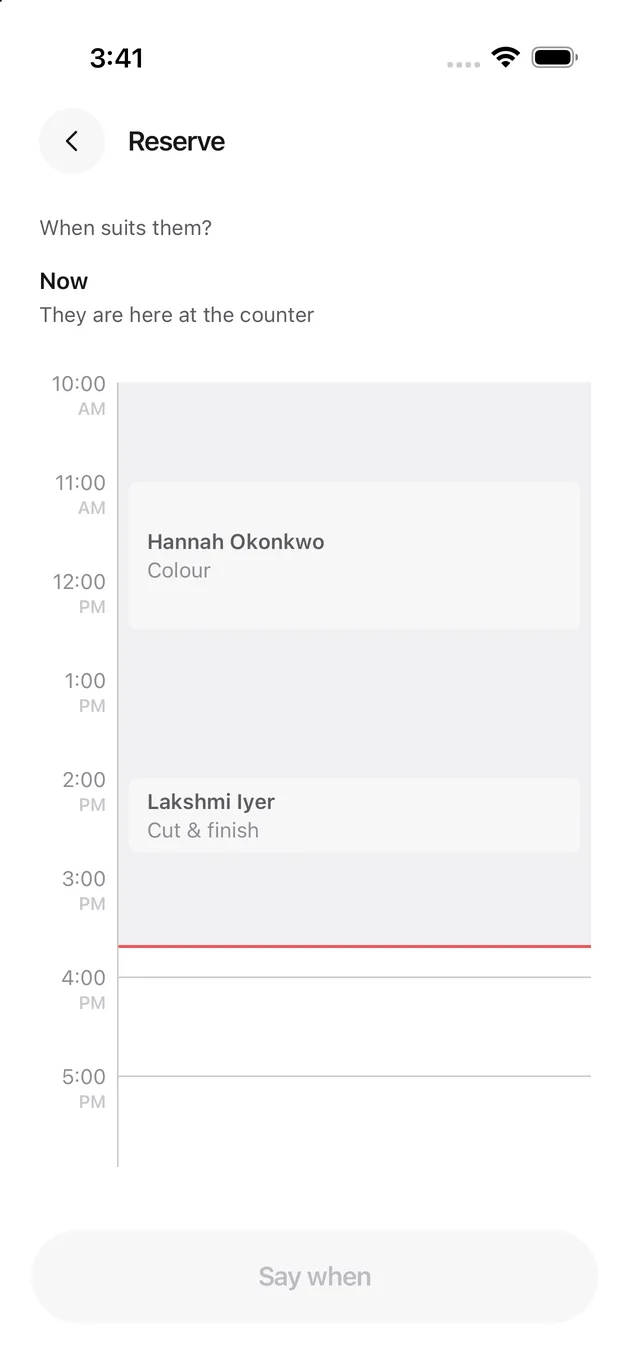
Now, or a time
Now puts them in the queue, standing at the counter. Anything else on the timeline makes it a booking.
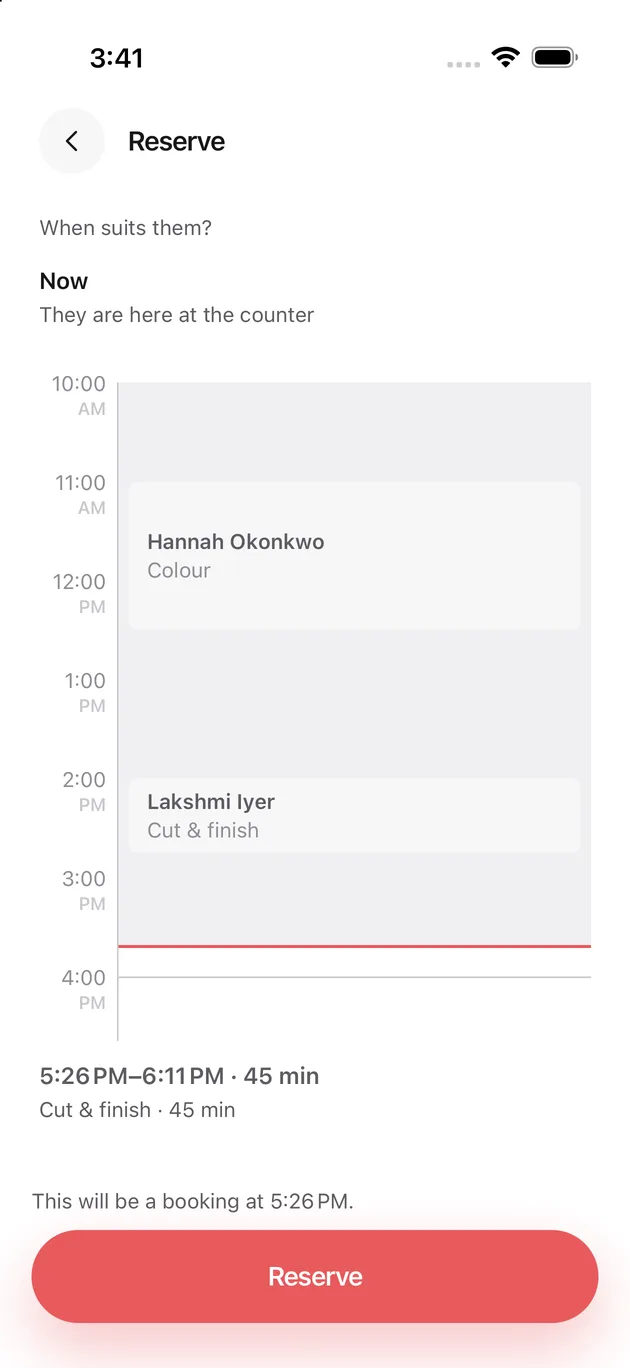
Tap the time you want
The service lays its own length on the timeline. The sentence underneath says plainly what you are about to create.
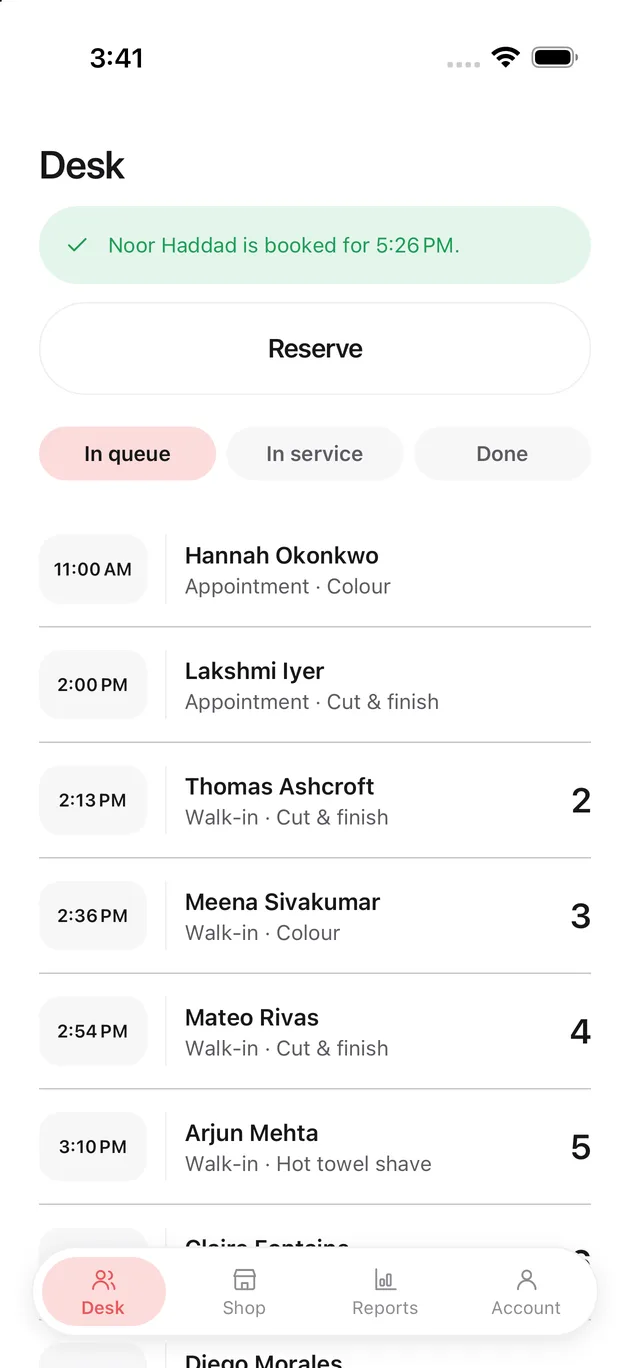
Done
You land back on the Desk with the new row in the list, and the client gets a text.
Starting and finishing a client
The counter shows you who is waiting. Starting and finishing belong to the chair that has them, on that stylist's own Today screen.
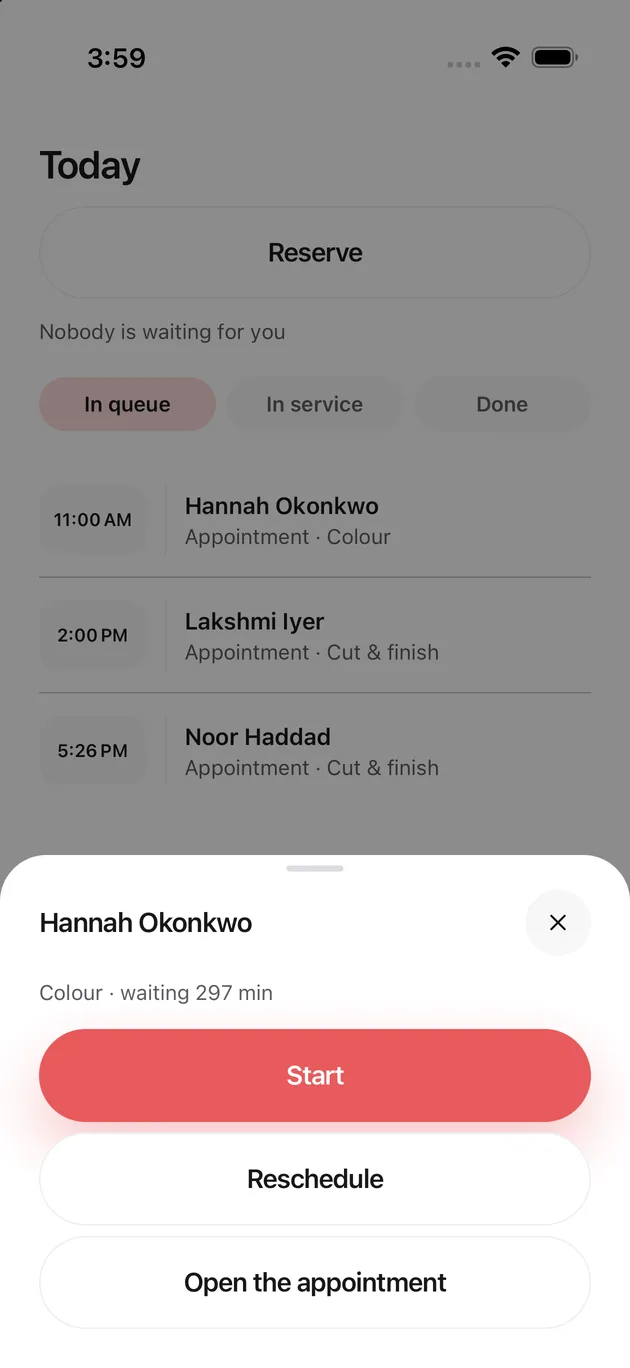
Tap their row
Start begins the service. Reschedule opens the timeline instead.
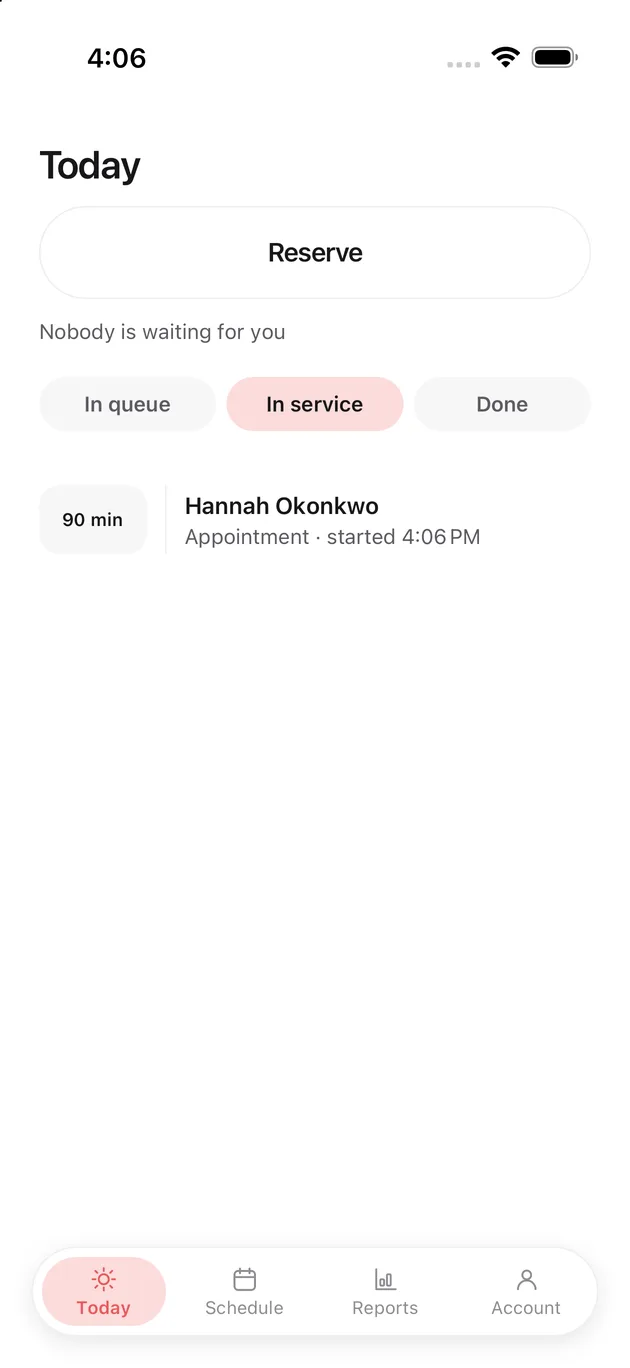
They are in the chair
They move to In service, and the row says when you started.
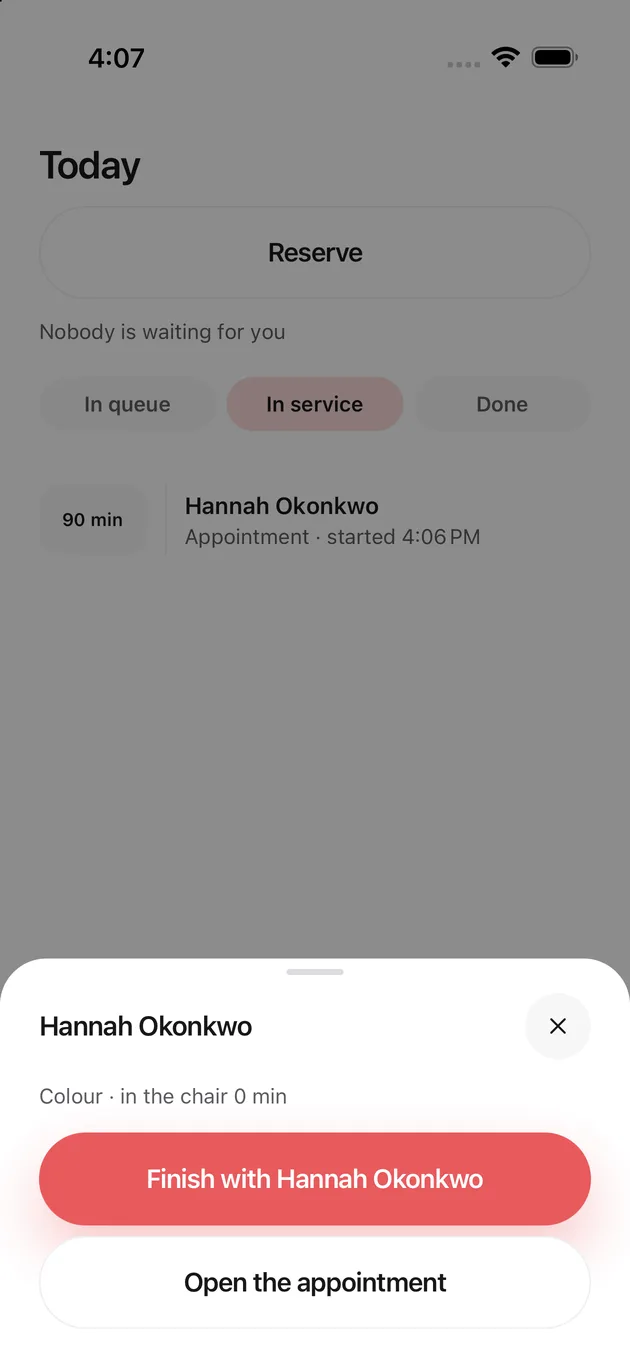
Finish
The sheet now offers one thing. It also shows how long they have actually been in the chair.
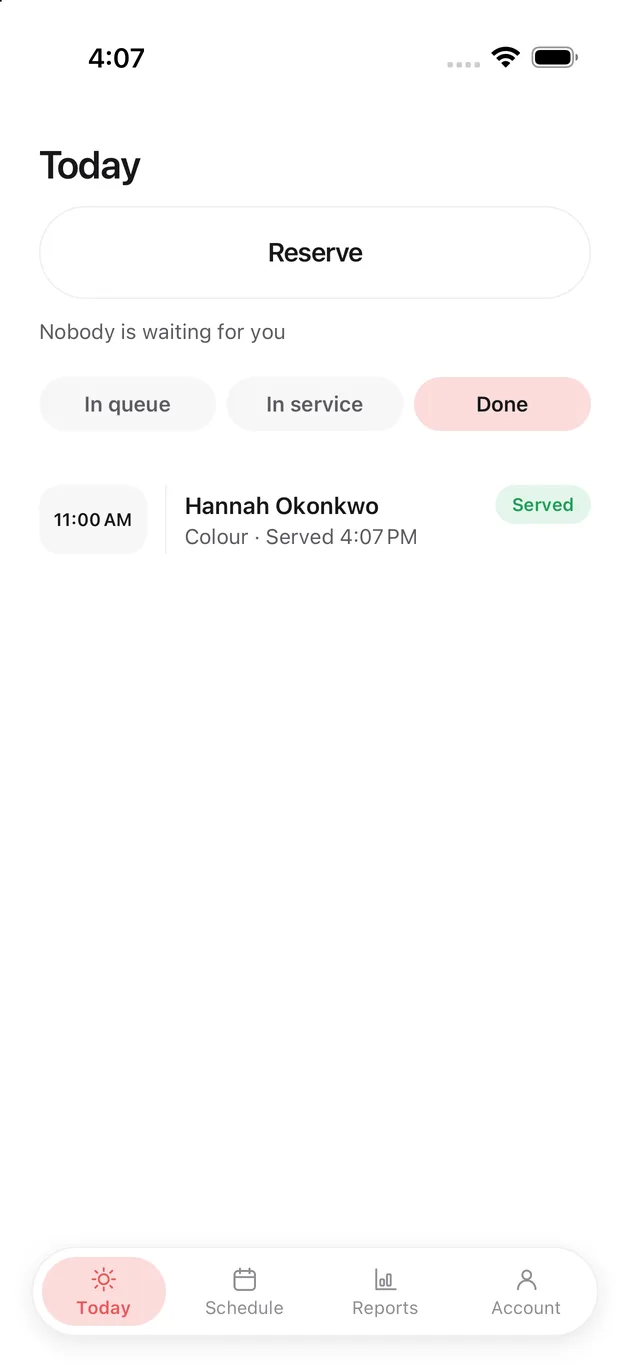
Served
Done, with the time you finished. Your report picks it up from here.
Moving an appointment
The client is texted, so nobody turns up at the old time.
Open the client and choose Reschedule
Moving keeps the same booking and the same reference, so the link the client already has still works.
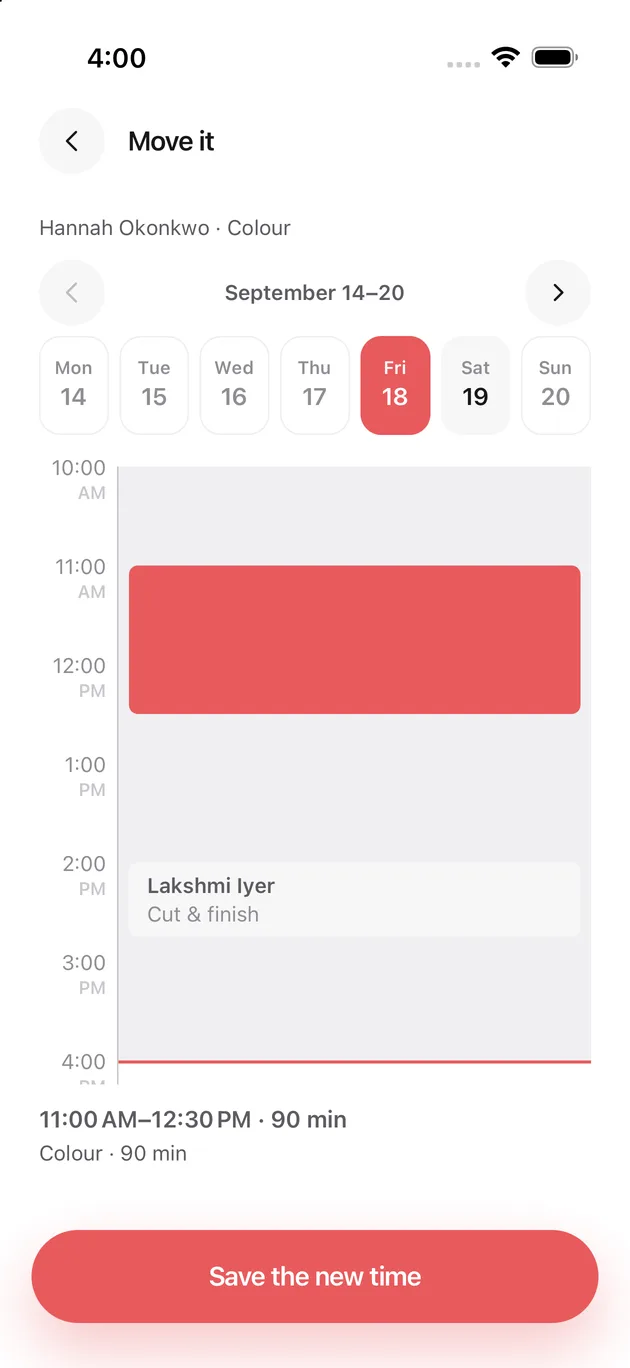
Pick a new time
The week is across the top and the day underneath. The red block is the appointment you are moving; the grey ones are what else is on that day. Drag it or tap a new time, then save.
Adding somebody to the shop
For the owner. They get a text, install the app, and the app asks them the rest.
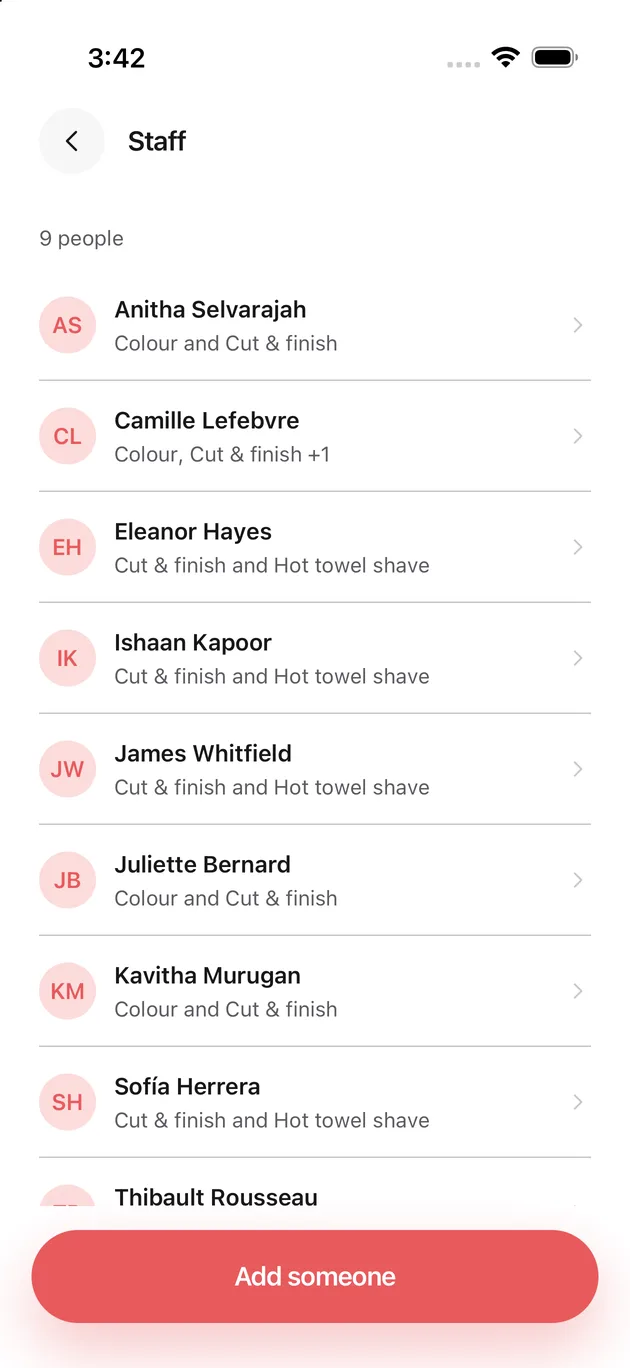
Open Staff
Everybody with a chair here, with what each of them offers underneath.
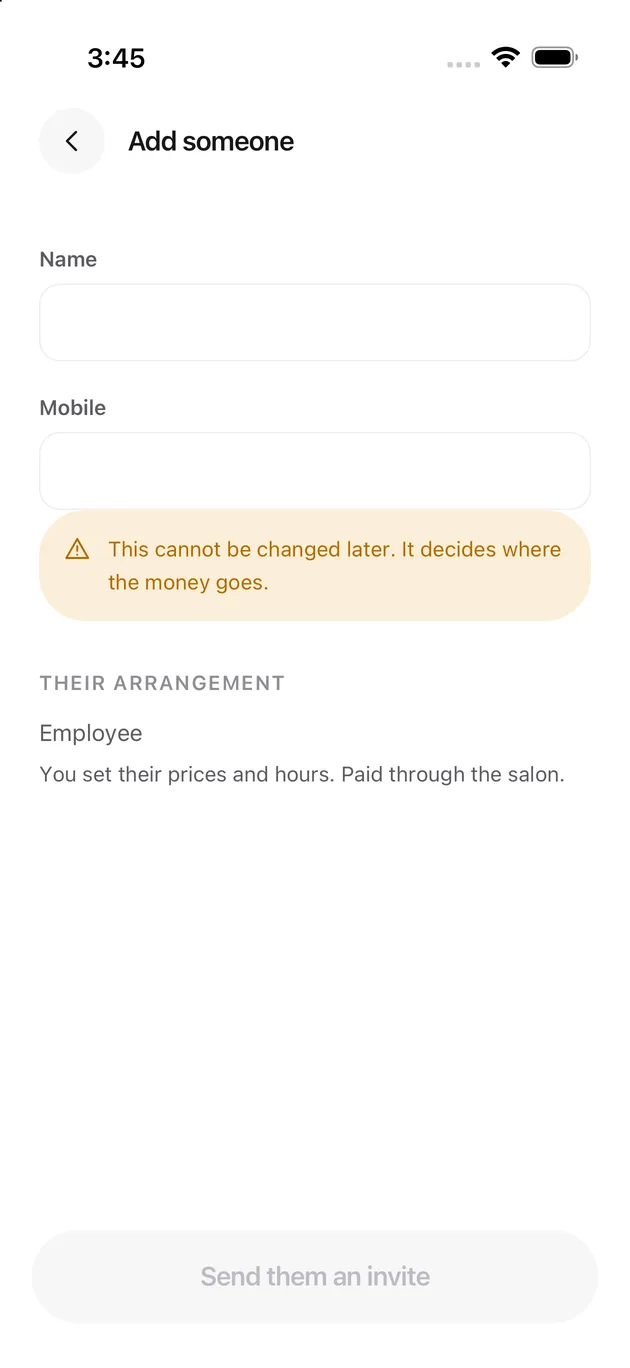
A name and a mobile number
That is the whole form. Their arrangement cannot be changed afterwards, so the screen says so before you send it.
Taking somebody off the shop
For the owner. Set a last day and deal with what is standing behind it.
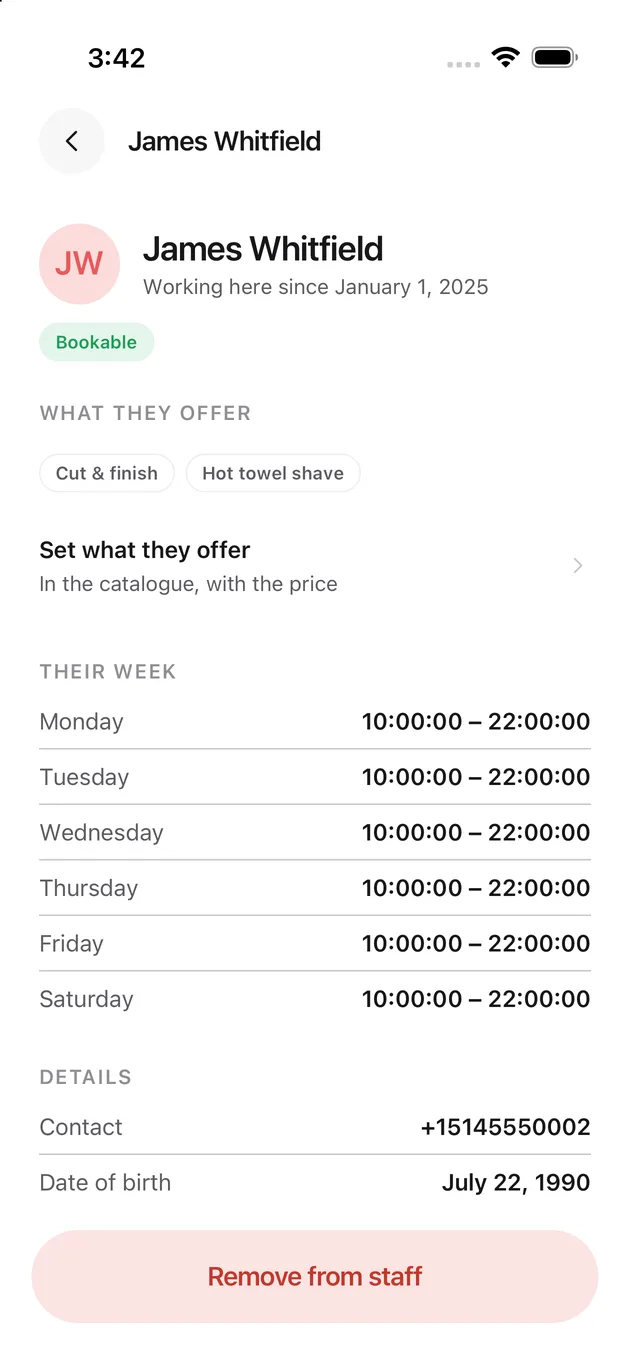
Open them, then Remove from staff
The whole record for one person: when they started, what they offer, the week they work.
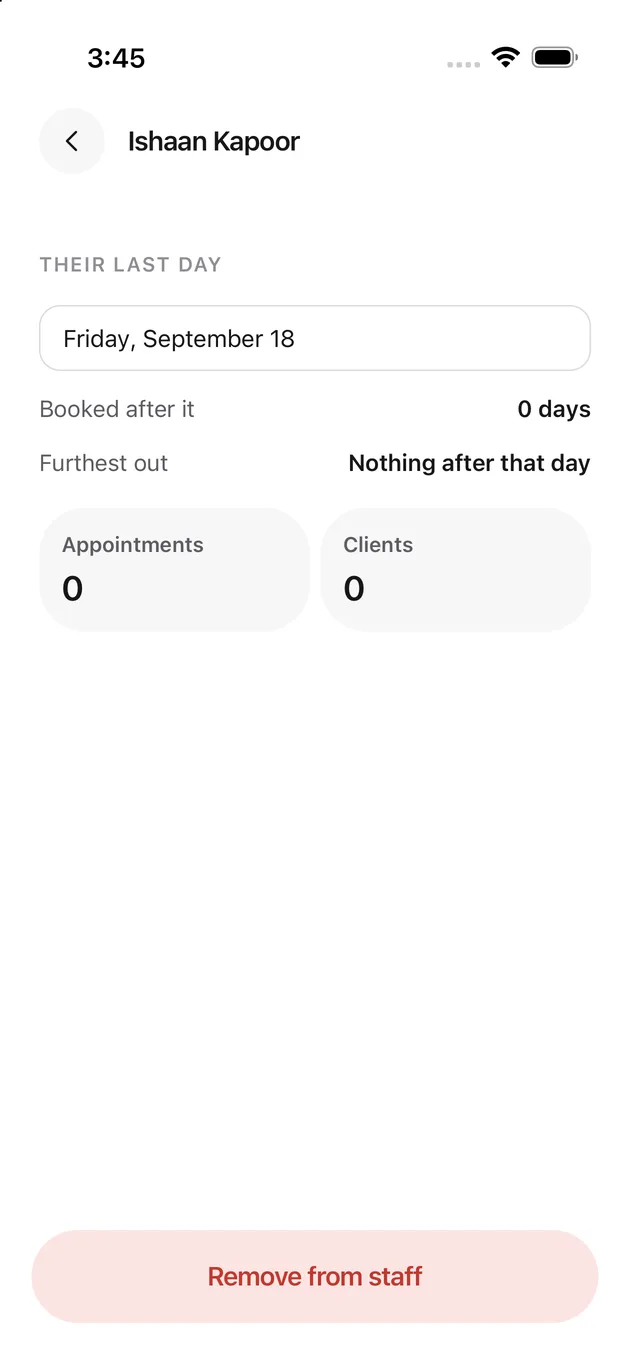
Set their last day
The screen tells you how many days are booked after it, how far out the furthest one is, and how many appointments and clients are affected. If those are not zero, deal with them before you confirm.
Changing what the shop sells
For the owner. One price per service, and everybody who offers it charges it.
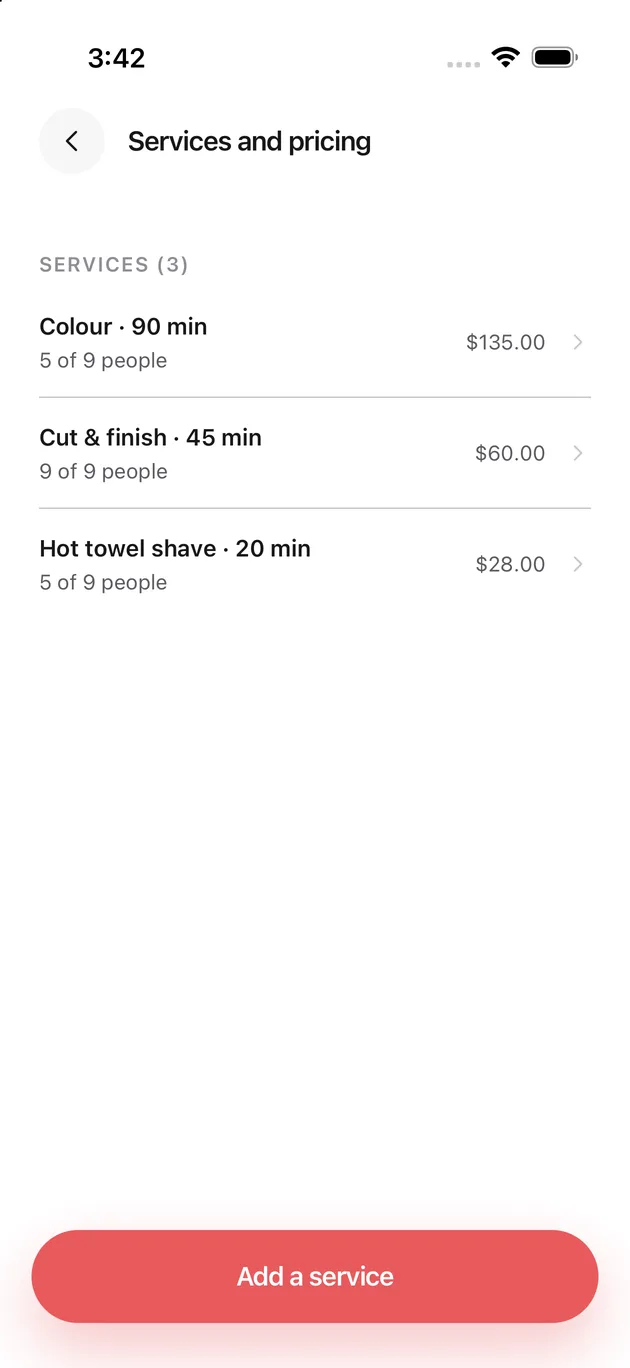
Open Services and pricing
Everything the shop sells, how long each takes, how many of the team offer it, and the price.
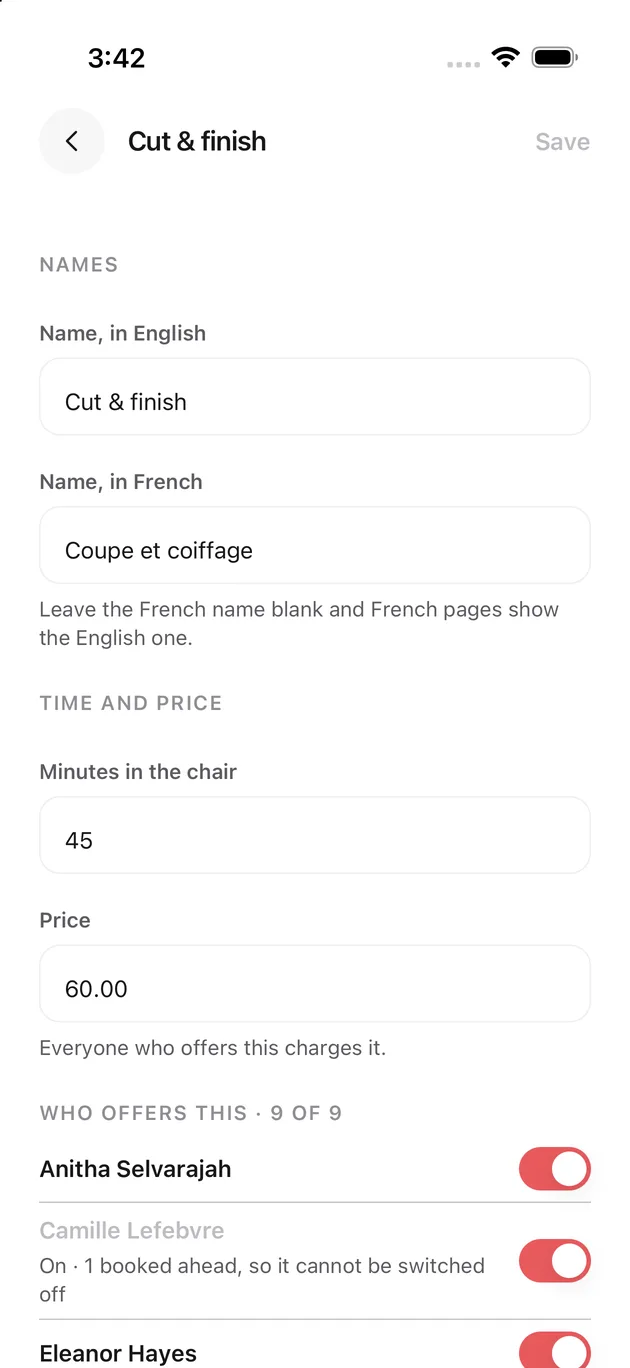
Change a service
Names in both languages, minutes in the chair, and the price. Leave the French name blank and French pages show the English one.
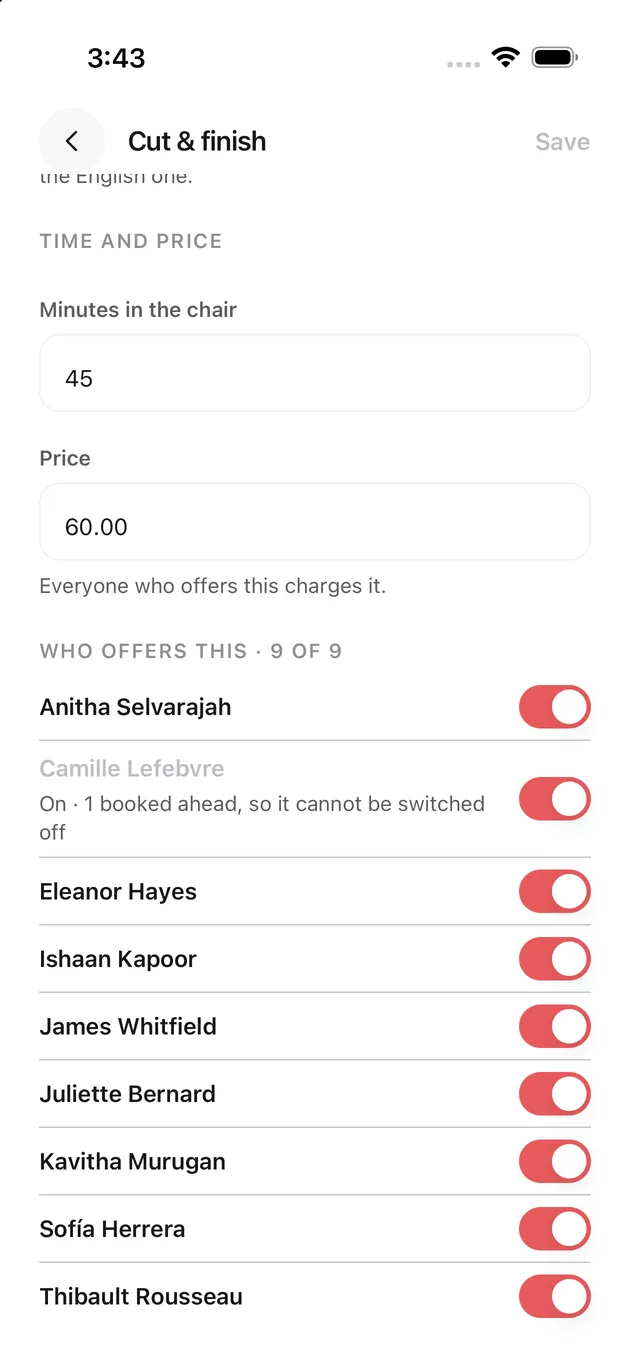
Choose who offers it
Switch a person on or off. Somebody already booked for this service cannot be switched off underneath the booking.
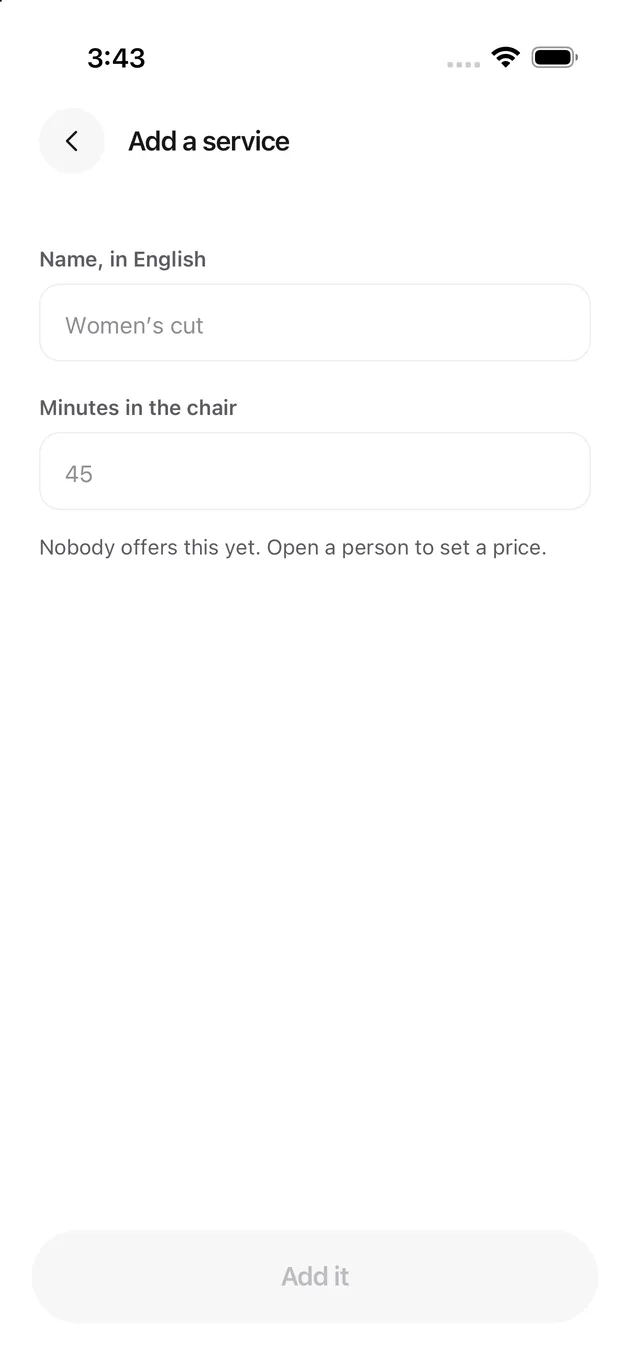
Add a new one
A name and a length. Nobody offers it until you switch them on.
Changing the shop's hours
For the owner. Each person sets their own week inside these, so nobody can be booked at an hour the shop is shut.
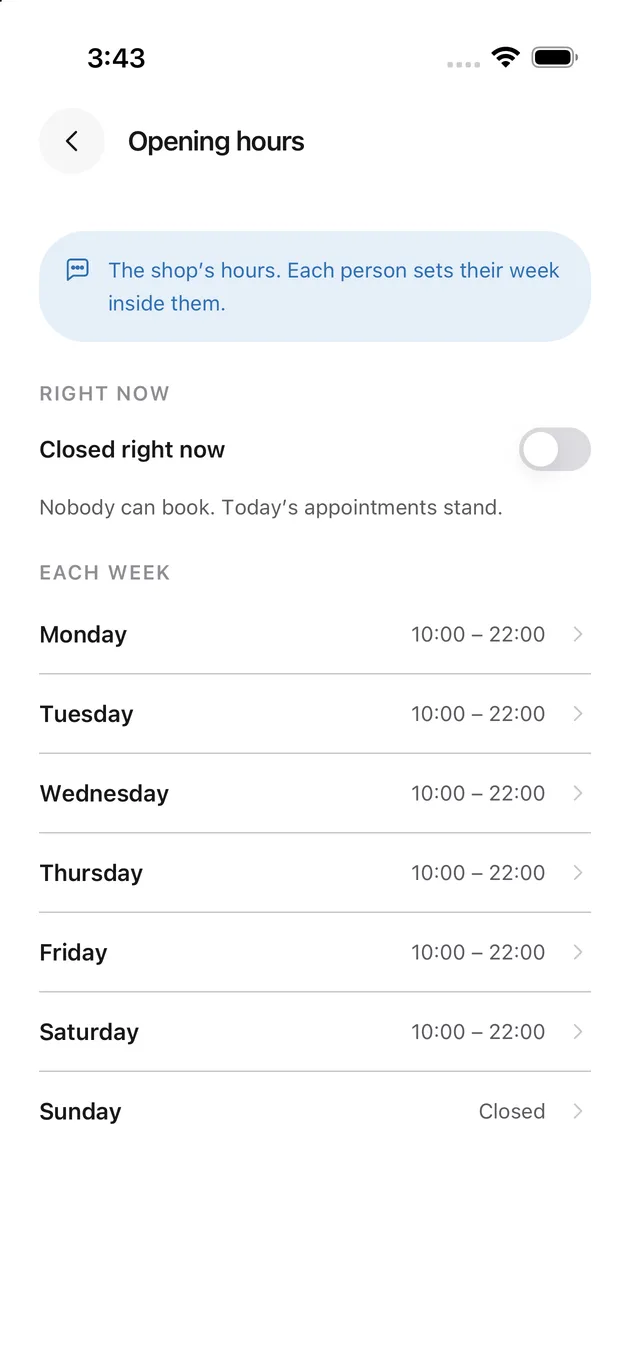
Open Availability
Closed right now takes the shop off the market immediately without touching the week. Appointments already on the book still stand.
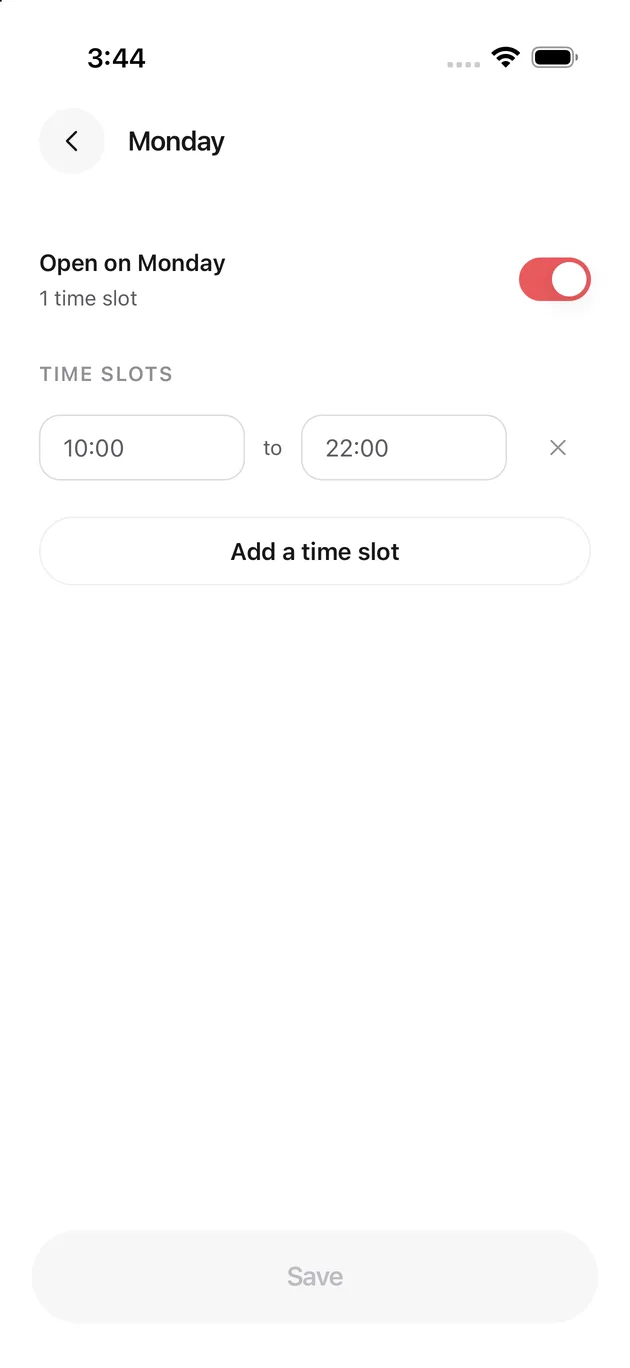
Change one day
A day can hold more than one window, which is how you draw a lunchtime close. Switch the day off entirely and the week reads Closed.
Changing your own working week
Yours, not the shop's. Clients only ever see the overlap between the two.
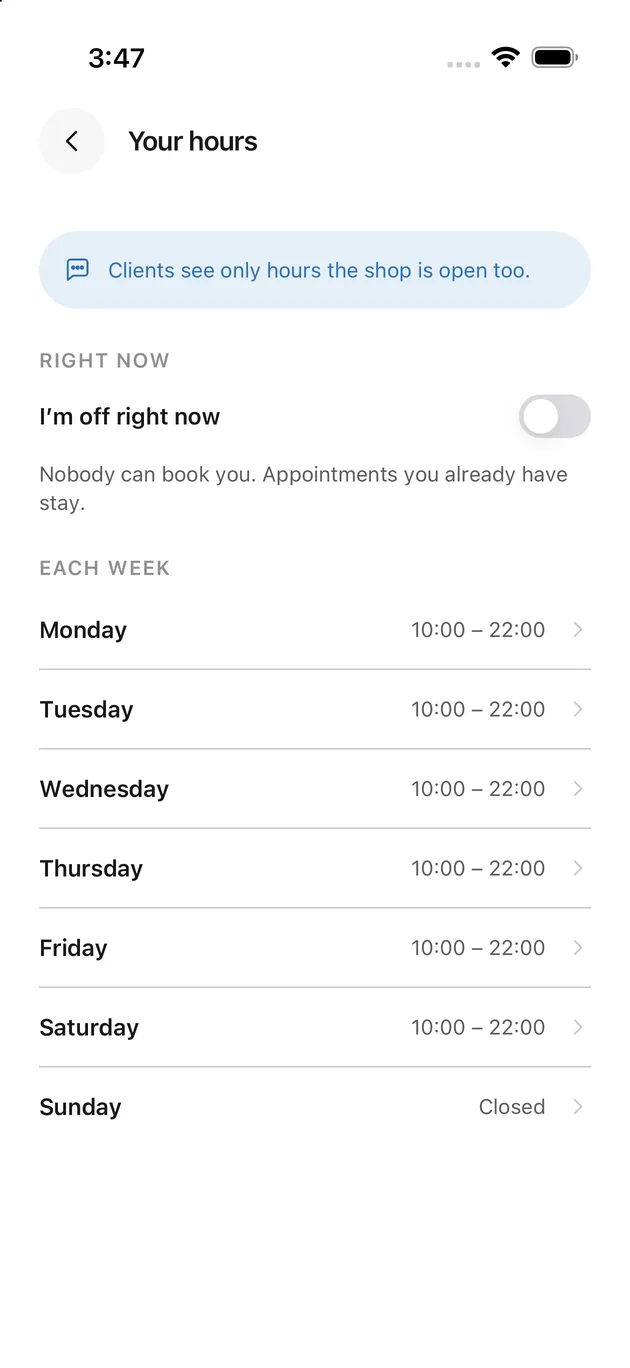
Open Your hours
I'm off right now stops anybody booking you from this moment. Appointments you already have stay where they are.
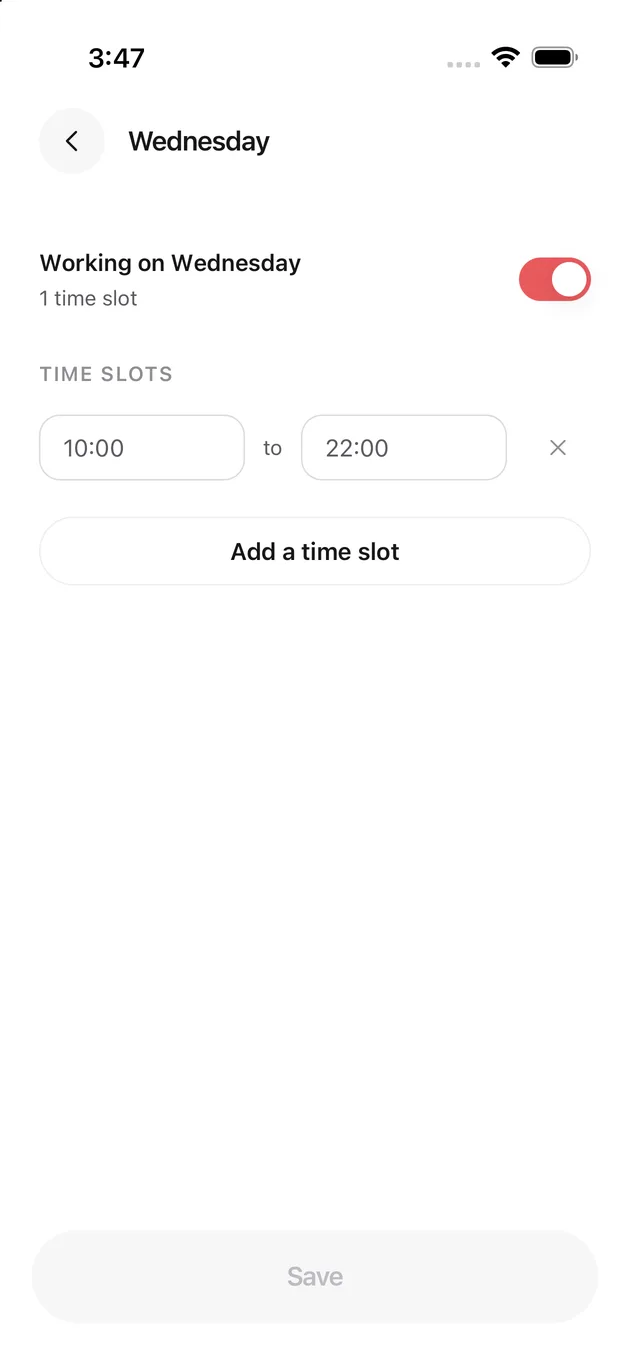
Change one day
Add a second window for a split day.
Before you start
Who this is for
Two people use this app, and they use the same one.
The owner runs the shop. She gets four tabs: Desk, Shop, Reports and Account. If she also holds a chair, she can switch to her own day and back without signing out.
A stylist works a chair. She gets four tabs too: Today, Schedule, Reports and Account. Same app, fewer tabs, and nothing about anybody else's chair.
You never choose which of these you are. The shop you were added to decides it, and the app draws the tabs to match.
How to read this handbook
Each screen gets a picture and a short explanation. If you came here to do one particular thing rather than to read, `tasks.md` walks the common jobs end to end. The pictures come from a real shop running on a phone, with a real day in it: nine stylists, three services, a queue at the counter and three appointments on the book. Names and numbers are made up; everything else is the app as it ships.
Where a screen does something that is easy to get wrong, there is a line beginning Watch out. Those are the ones worth reading twice.
The two words that matter
A walk-in is somebody standing in the shop with no appointment. They join the queue, they get a ticket number, and somebody seats them when a chair frees up.
An appointment is a booked time. It has a client, a service, a start and an end, and the client gets a text before it.
The counter holds both, in one list, in time order. That is the whole idea.
Getting in
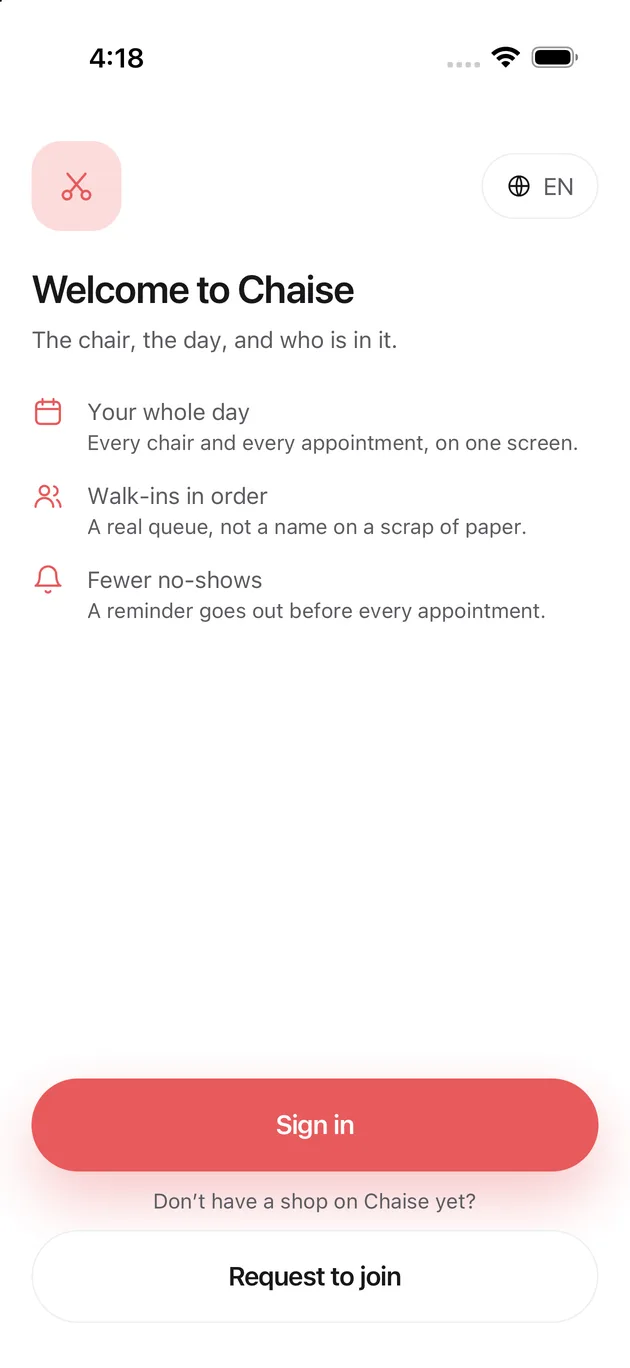
The welcome screen
This is the first thing the app shows, and it is where signing out returns you.
Sign in is for anybody who already has a chair at a shop on Chaise. That is almost everybody: the owner adds you, then tells you to install the app.
Request to join is for somebody with no shop yet. It does not create an account.
The EN pill in the top right sets the language before you have signed in, which matters because the next screen is in whichever language you pick.
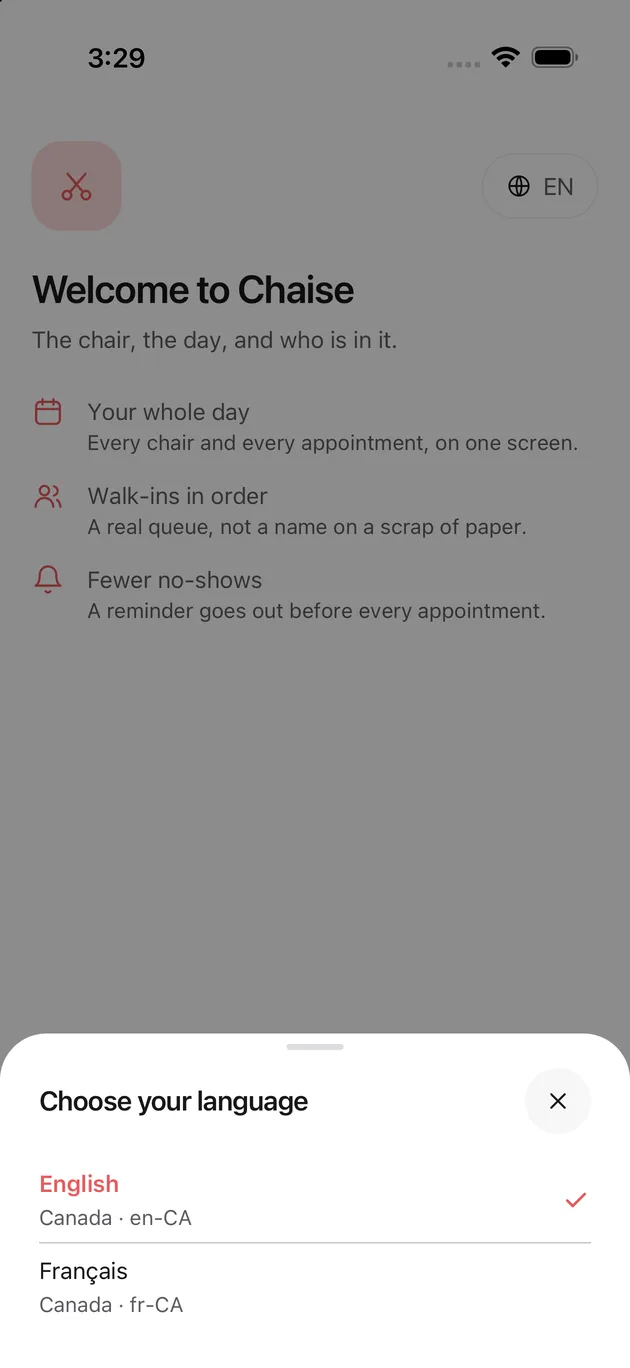
Choosing your language
English and French, and the choice sticks to this phone. Signing out does not undo it, so you meet this screen once.
You can change it later under Settings without touching your sign-in.
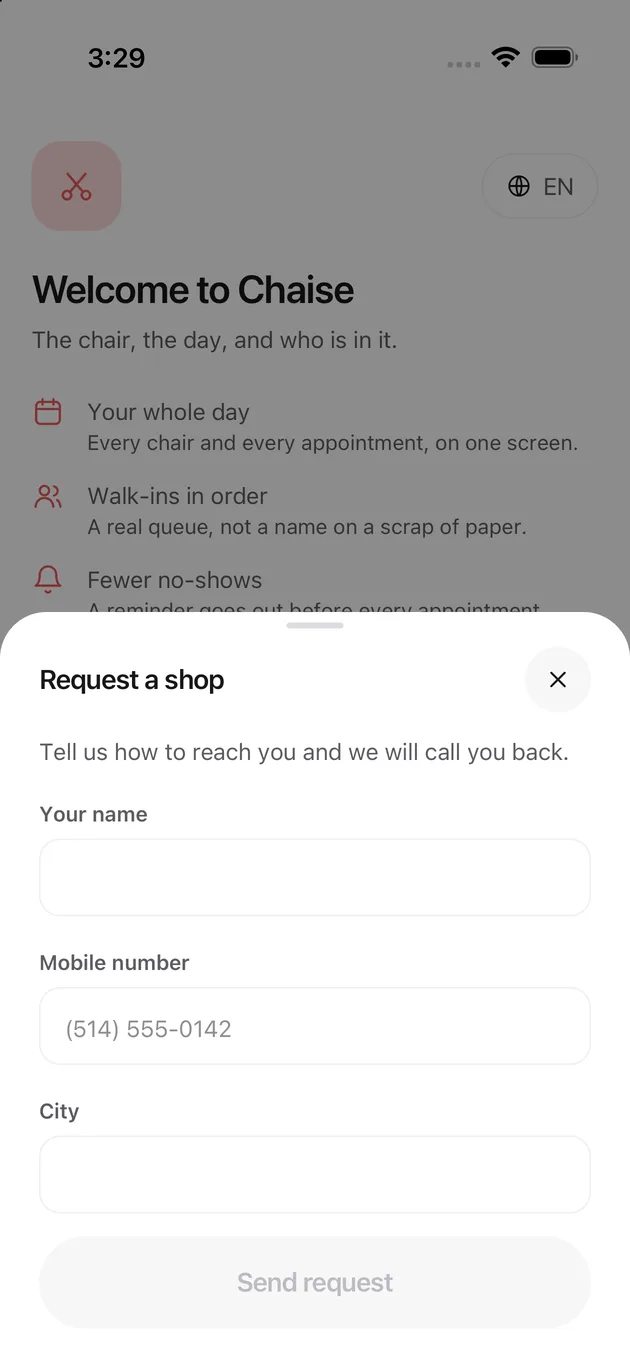
Asking for a shop
Tapping Request to join opens this. Three fields, no password, no account: it is a message asking somebody to call you back.
No email address is collected because the reply comes by phone.
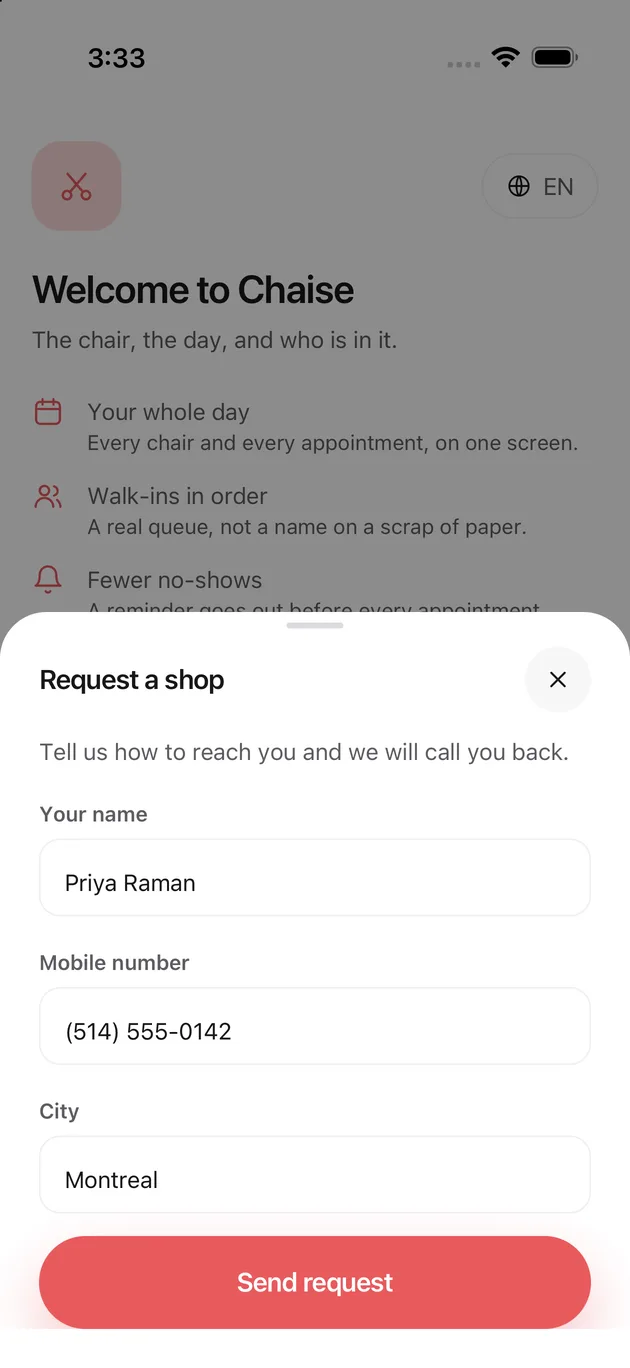
Filling the request in
Send request stays grey until all three fields are filled and the number is a complete one. A half-typed number cannot be called back, so the button does not pretend otherwise.
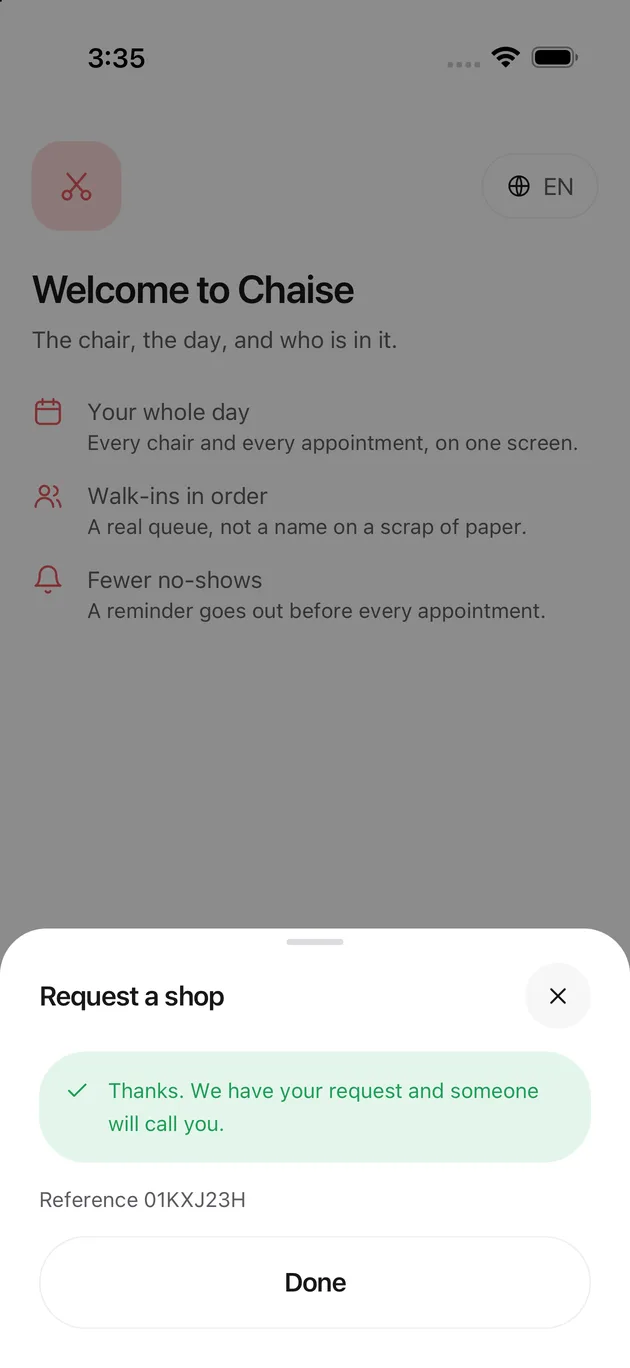
The request went
You get a reference. Keep it: quoting it is faster than re-describing the shop when somebody rings.
Nothing was created. There is no account behind this and no password to remember.
Signing in
Your mobile number is your account. There is no password on this product at all.
The small print under the field is the consent line for the one text you are about to receive. Marketing messages are a separate opt-in and never ride on a sign-in.
Watch out. A number that belongs to nobody still gets the code screen and no text. The door does not confirm who has an account, which is deliberate.
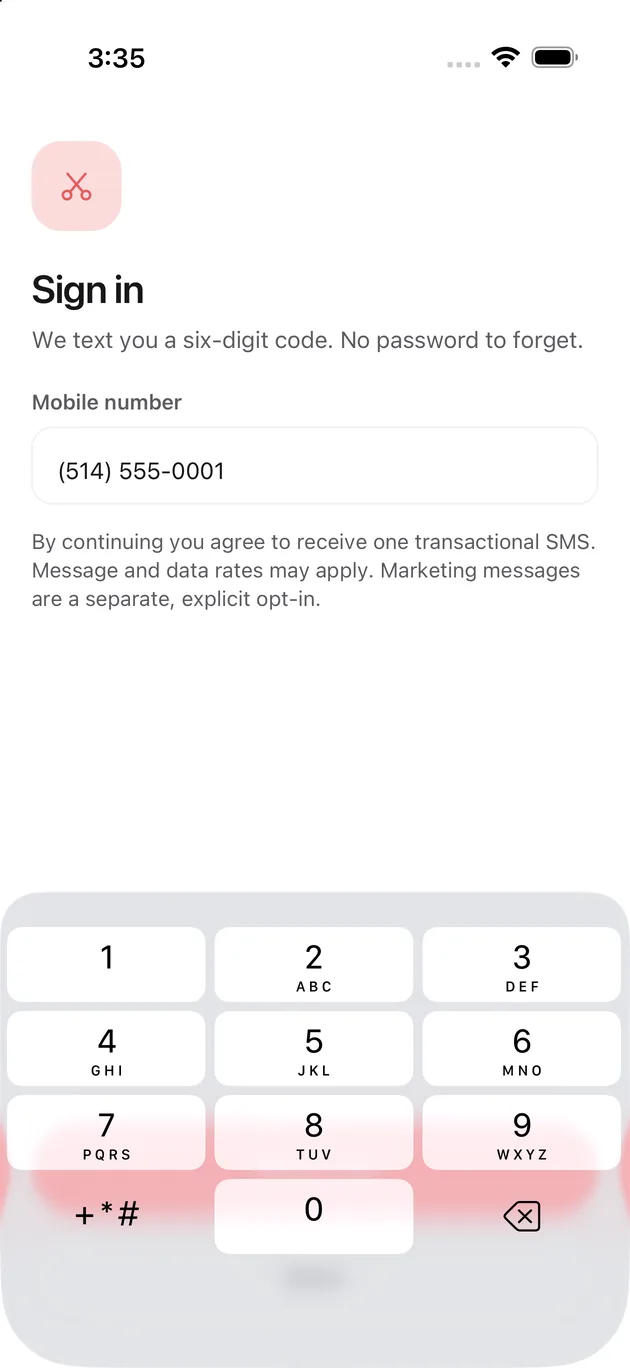
Entering the number
The field formats as you type, so `5145550001` becomes `(514) 555-0001` on its way in. Send code wakes up once the number is complete.
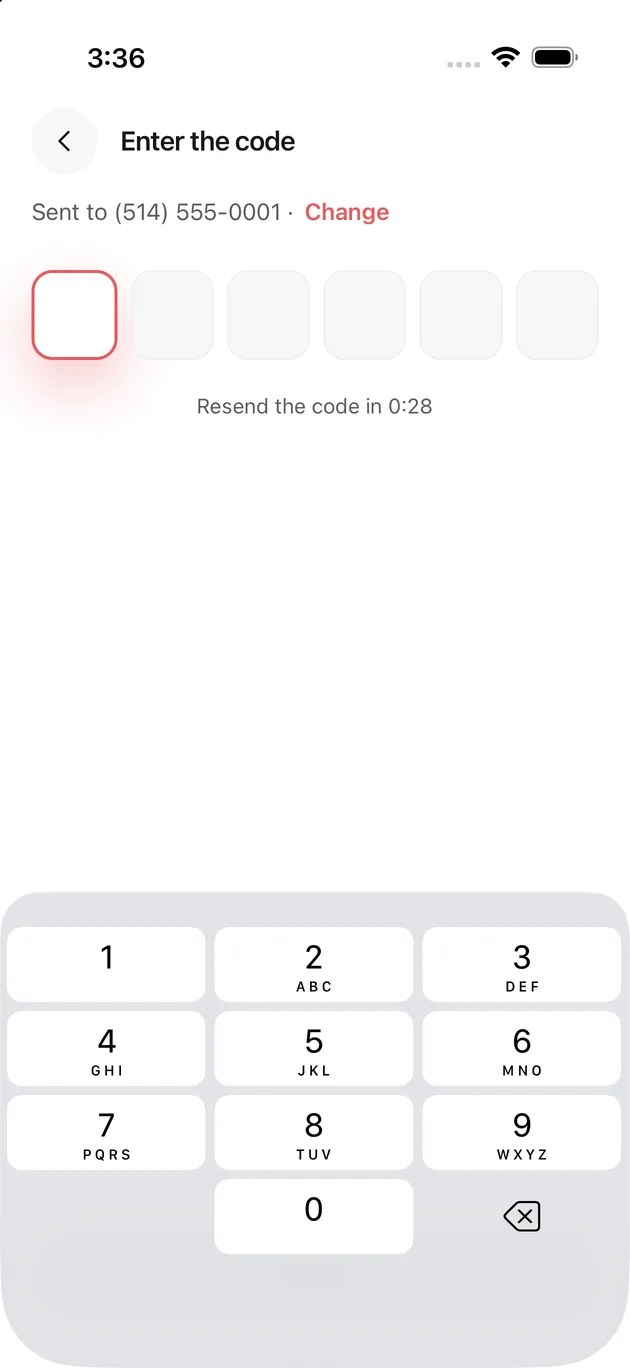
The six-digit code
The code lands by text in a few seconds. Change goes back to the number if you fat fingered it.
The resend counter stops you asking for a second code before the first has had time to arrive.
Verifying
Type the six digits and tap Verify. Five wrong guesses kills the code and sends you back to the number, so take the extra second.
If you hold a chair at more than one shop, a picker appears here asking which one you are signing into. With one shop the app skips it.
First sign-in: your name
The first time you sign in after an owner adds you, the app asks who you are before it shows you anything. Three steps, and the bar at the top says where you are.
This name is what your shop sees and what clients see on a booking.
Not you? Sign out is there for the case where somebody typed the wrong number when they added you.
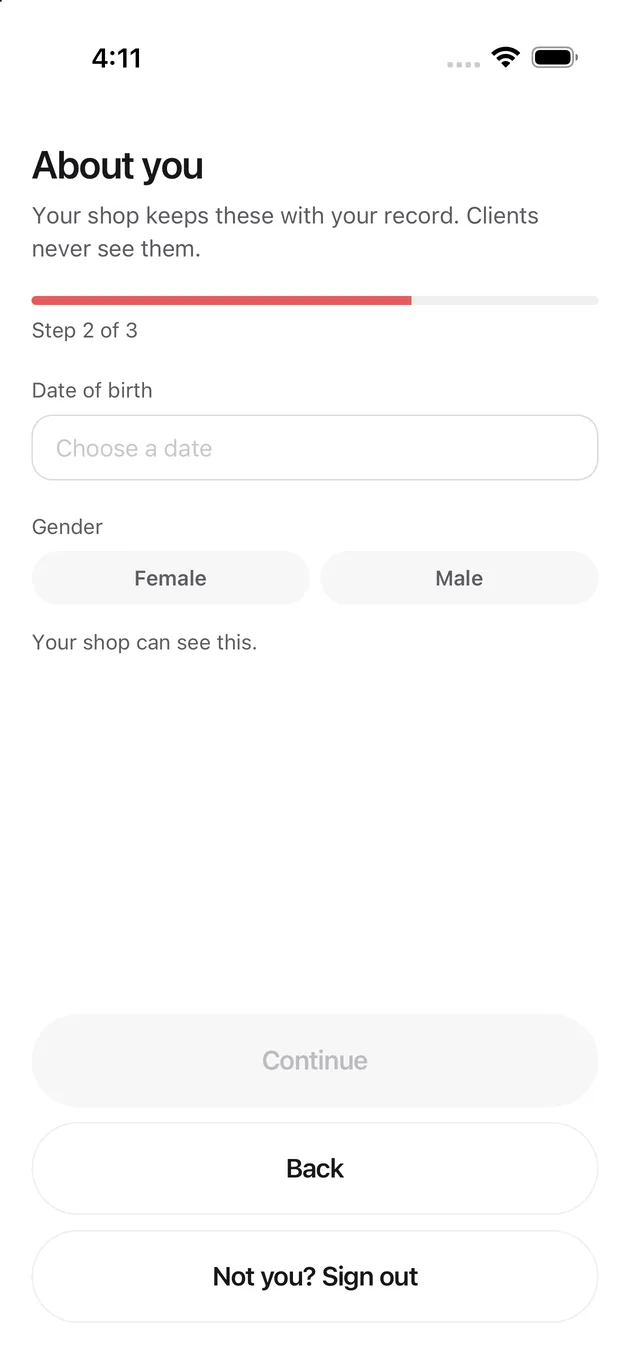
First sign-in: about you
Date of birth and gender. Your shop keeps these with your record; clients never see them.
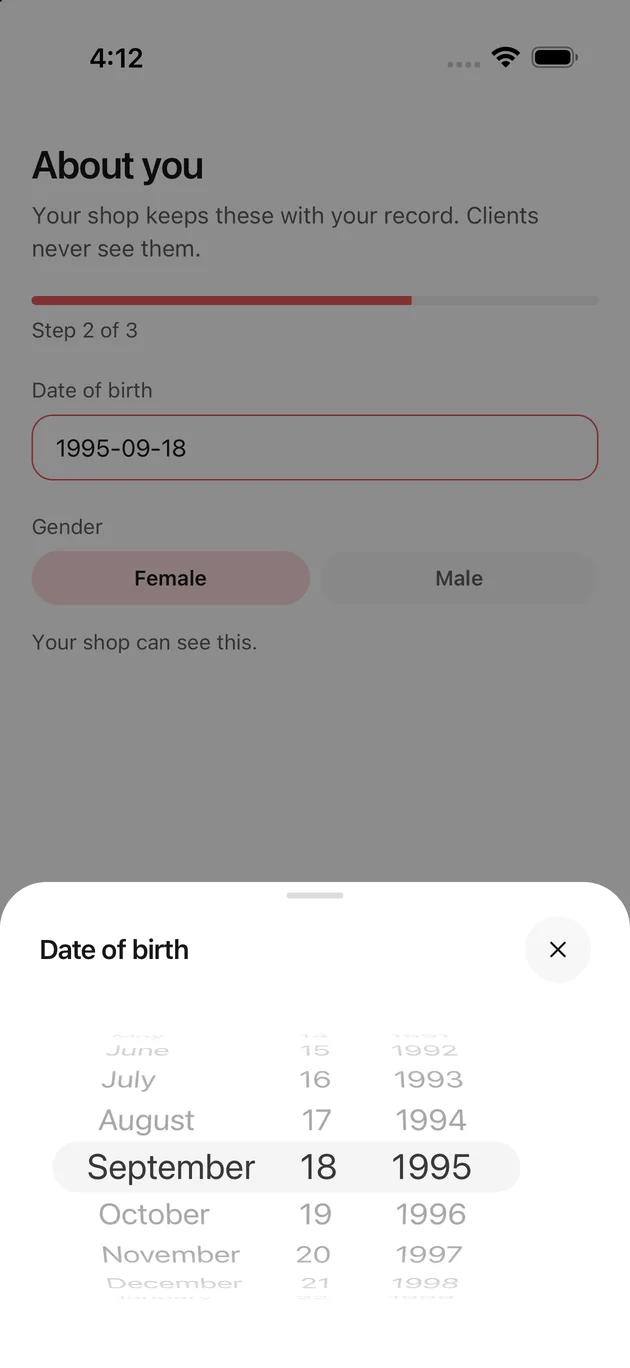
Picking a date of birth
A wheel rather than a typed date, because it cannot produce the 31st of February.
Watch out. Spin at least one wheel. Opening and closing this without moving anything leaves the field empty, and Continue stays grey.
About you, filled in
Continue lights up once both are set.
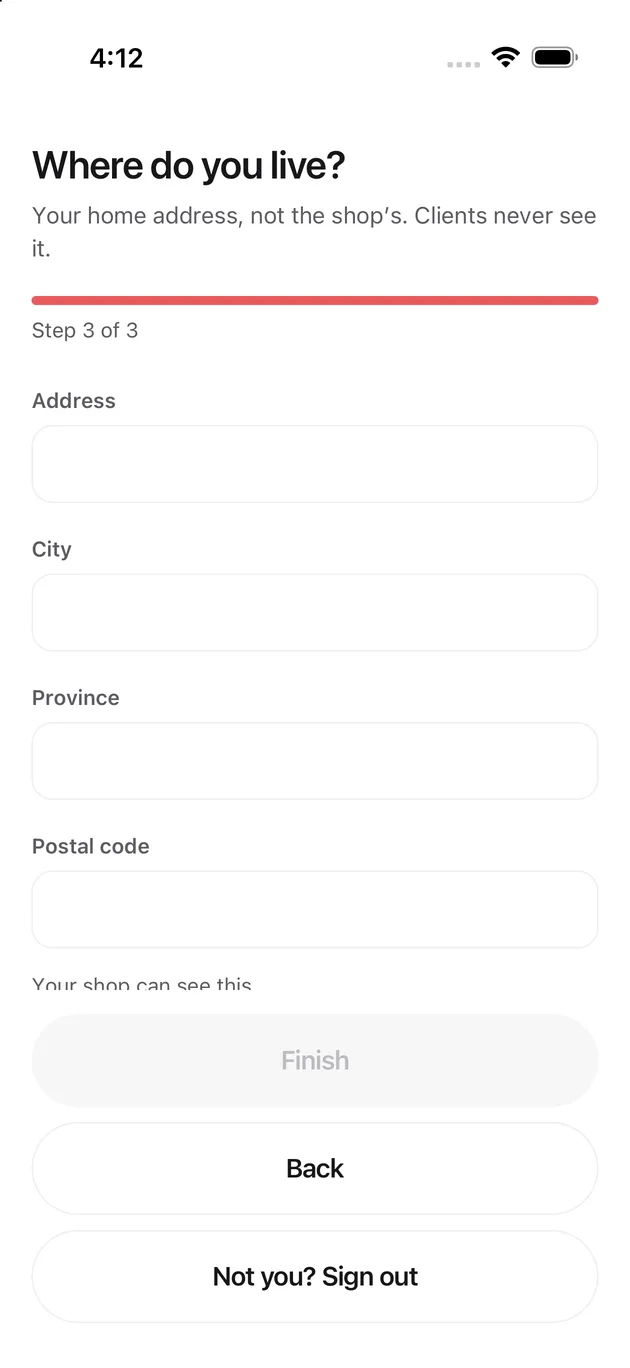
First sign-in: where you live
Your home address, not the shop's. Clients never see it.
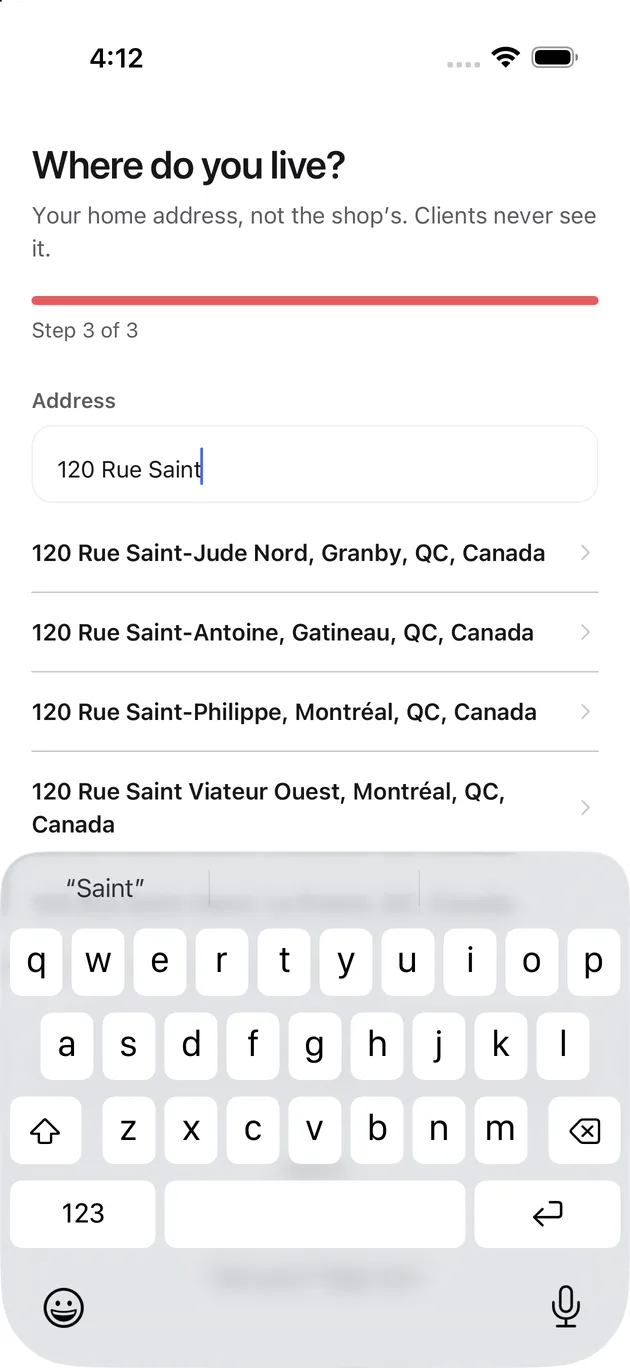
The address finds itself
Start typing and the app suggests real addresses. Picking one fills the city, province and postal code for you, so there is nothing left to mistype.
Address confirmed
City, province and postal code are greyed because the address was verified and is kept exactly as matched. Enter it by hand is the way out for an address the lookup does not know.
You are in
Finish lands you on your own day. The registration screens never come back.
The owner's day: the Desk
The Desk is the counter. It is everybody in the shop right now, walk-ins and appointments together, in the order the clock puts them.
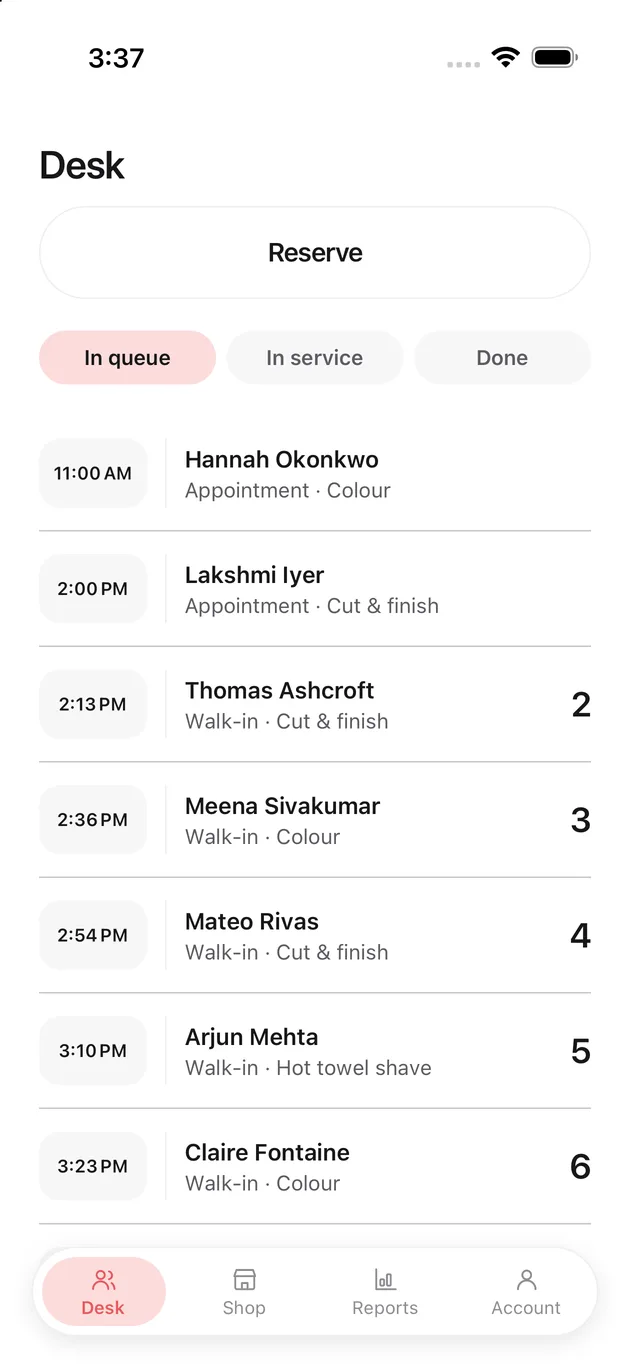
In queue
Everyone still waiting. Appointments show their booked time; walk-ins show when they arrived and carry a ticket number on the right.
The number is an identifier, not a rank. Ticket 4 is not necessarily fourth in line, and the list order is the answer to who is next.
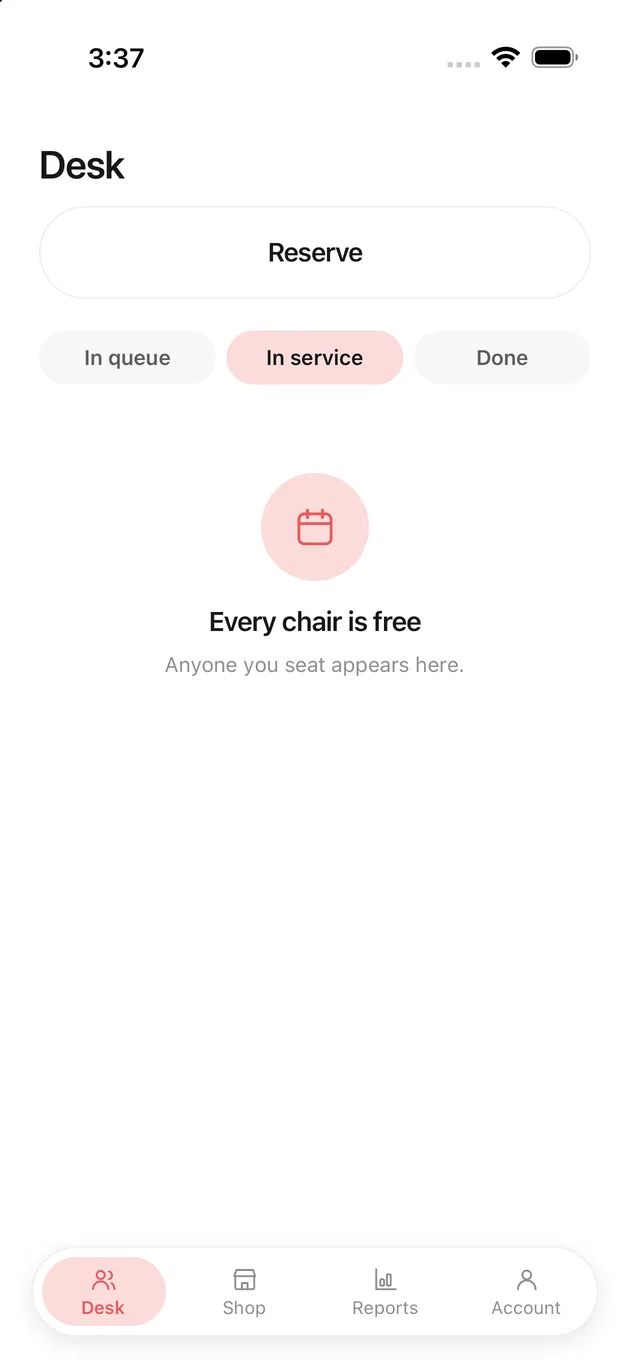
In service
Everyone in a chair right now. Empty here means exactly what it says.
Somebody lands on this tab when the stylist taps Start, not when the owner does anything.
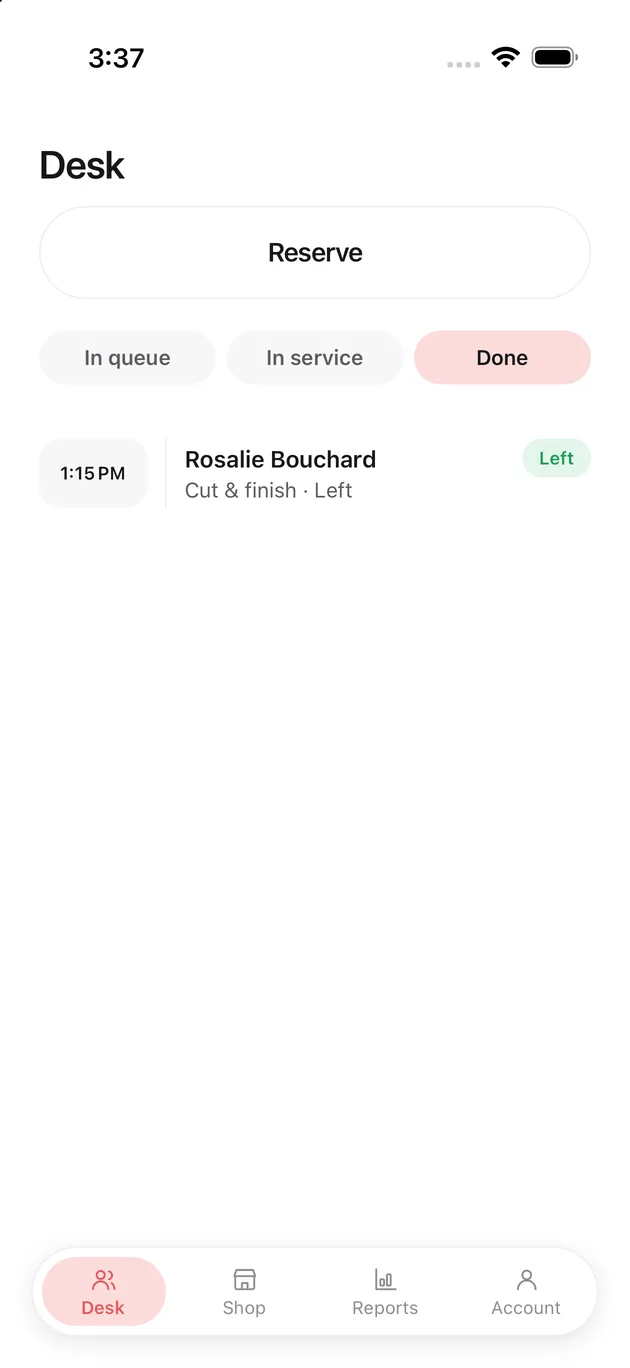
Done
How the day ended for the people who have finished with it: served, left, no-show. Rosalie came in, waited, and went, so her row says Left.
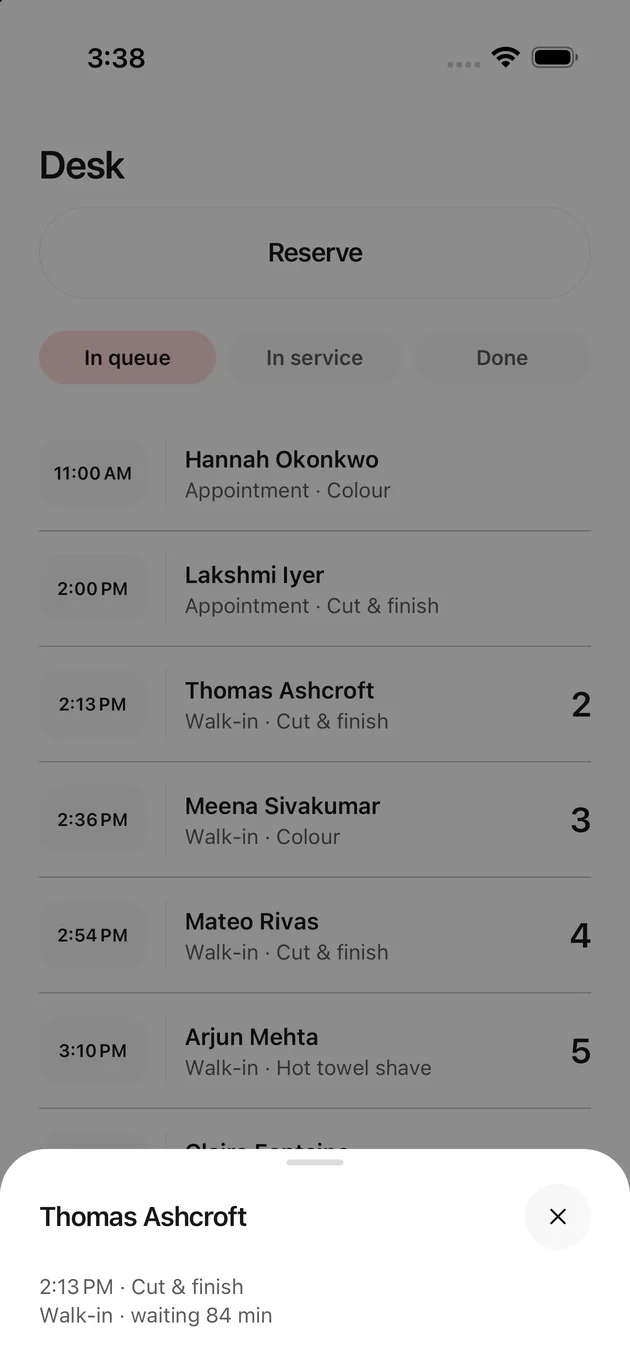
Opening somebody on the Desk
Tapping a row restates it: the time, the service, and how long they have been waiting. The row truncates that last part; the sheet has room for it.
Watch out. There are no buttons here on purpose. The counter reads the room. Starting, finishing and handing a client over belong to the chair that has them, on that stylist's own Today screen.
Reserve: somebody at the counter
Reserve is the only way into the queue from a screen. Both fields are optional, so an unnamed person who has not decided what they want is still a row on the counter.
Choosing the service
The shop's catalogue, with how long each one takes. The duration is what the wait estimate and the timeline are built from.
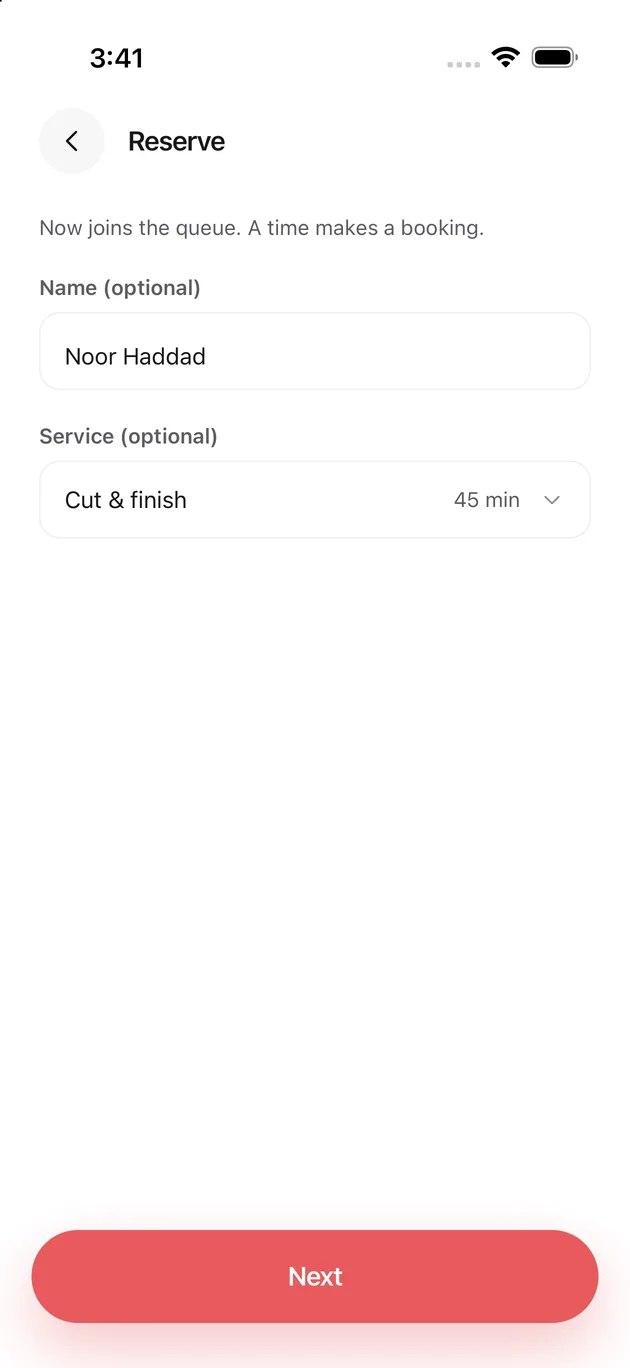
Ready for the next step
Name and service are set. Next asks the one question that decides what this becomes.
Now, or a time
Now puts them in the queue: they are standing at the counter.
Anything else on the timeline makes it a booking. The grey blocks are the day's existing appointments and the red line is the current time, so you can see what a new slot would sit between.
A time picked
Tap the timeline and the app lays the service's own length on it. Here a 45-minute cut lands at 5:26 PM and ends at 6:11 PM.
The sentence under it says plainly what is about to happen: this will be a booking, not a place in the queue.
Booked
You land back on the Desk with the sentence at the top and the new row in the list. The client gets a confirmation text with the time and the link they can change it with.
Running the shop
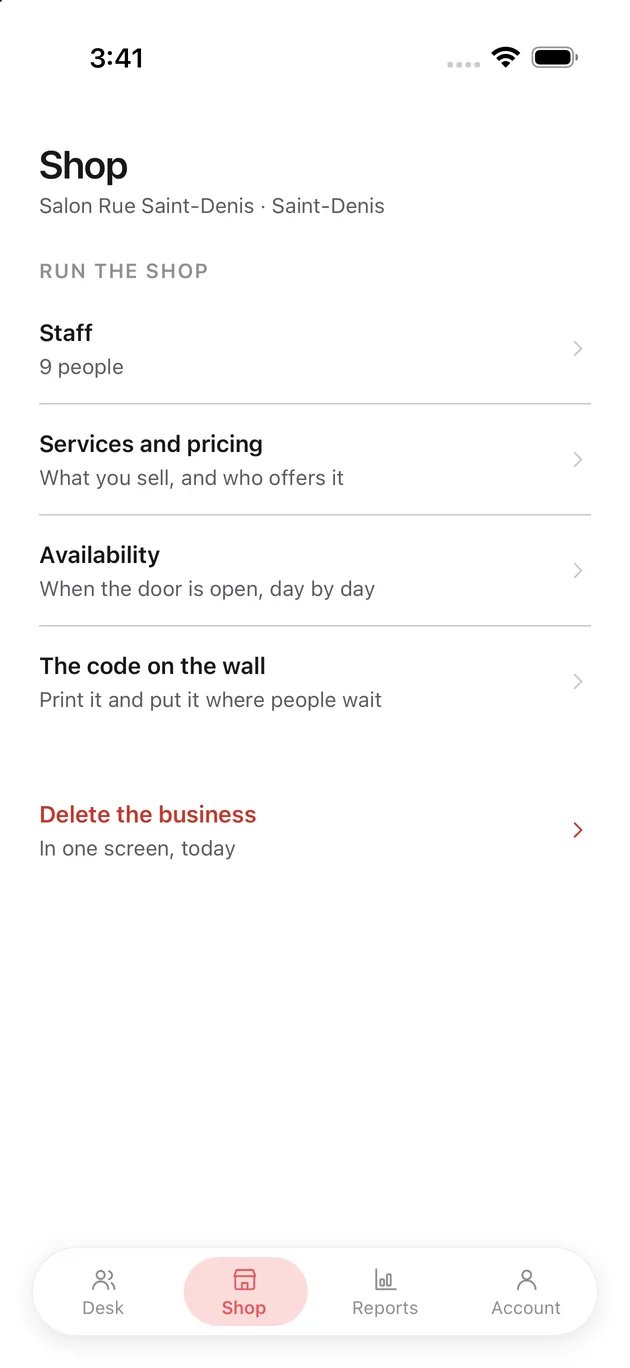
The Shop tab
Five things, and the first four are the shop's own record: who works here, what you sell, when the door is open, and the code on the wall.
The fifth is red and at the bottom, on its own, away from anything you might tap by mistake.
Staff
Everybody with a chair here, by name, with what each of them offers underneath. Nothing on this screen ranks anybody.
One person
The whole record for one member of staff on one page: when they started, whether they are bookable, what they offer, the week they work, and how to reach them.
Remove from staff at the bottom opens a screen of its own rather than doing anything here.
Add someone
A name and a mobile number is the whole form. They get a text, they install the app, and the three screens in Part 1 ask them the rest.
Watch out. The arrangement cannot be changed later. It decides where the money goes, and a shop that could flip somebody between arrangements is a shop with a compliance problem, so the app does not offer it.
Removing somebody
Set a last day and the screen tells you what is standing behind it: how many days are booked after it, how far out the furthest one is, and how many appointments and clients are affected.
If those numbers are not zero, deal with them before you confirm.
Services and pricing
Everything the shop sells, how long each takes, how many of the team offer it, and the price. Colour is offered by 5 of 9; everybody cuts.
One service
Names in both languages, minutes in the chair, and the price. Leave the French name blank and French pages show the English one.
One price per service, and everybody who offers it charges it.
Who offers it
Switch a person on or off for this service. Camille is greyed with a reason: somebody has already booked this service with her, so it cannot be switched off underneath them.
Add a service
A name and a length. Nobody offers a new service until you switch them on, which is the line under the fields.
Opening hours
The room's week. Each person sets their own week inside these, so a stylist can never be booked at an hour the shop is shut.
Closed right now takes the shop off the market immediately without changing the week. Appointments already on the book still stand.
One day
A day can hold more than one window, which is how you draw a lunchtime close. Switch the day off entirely and it reads Closed on the week.
The code on the wall
Print the poster and put it where people wait. Somebody scanning it joins the queue from their own phone instead of asking at the counter.
Allow "No preference" lets them say they will take whoever is free first. Switch it off and every self-serve walk-in has to name a stylist.
Watch out. Replacing the code kills every copy already printed, including the one on your wall.
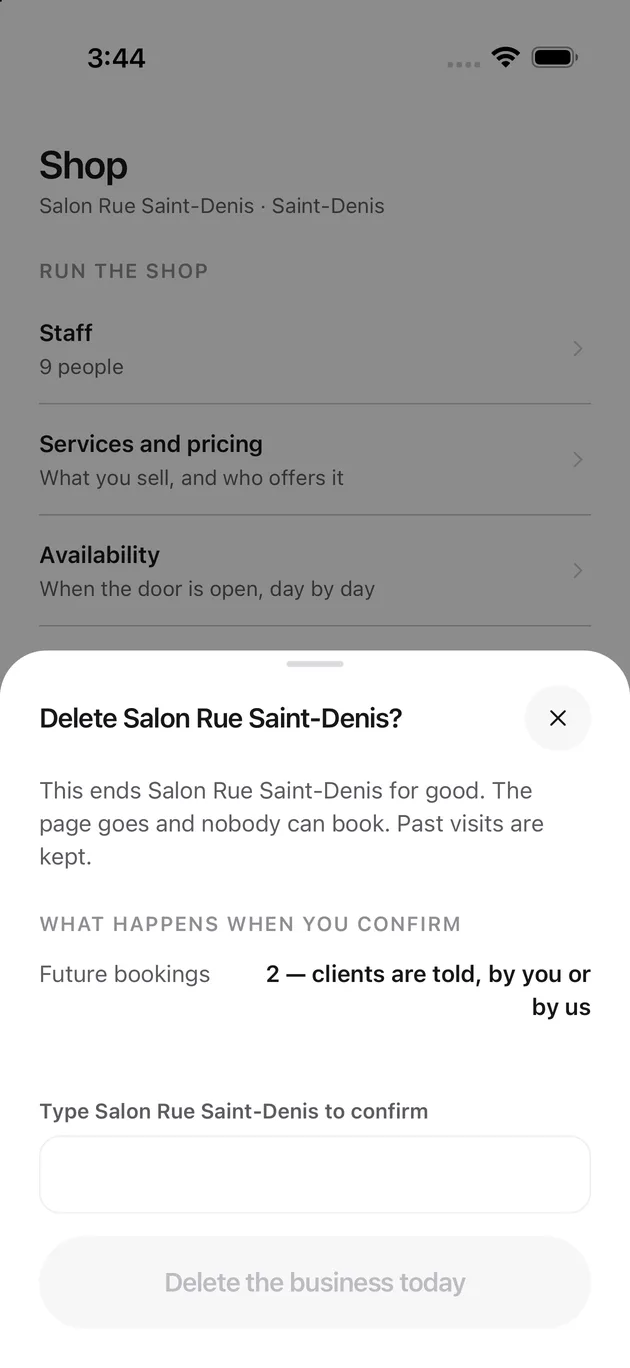
Deleting the business
One screen, today, and it says what it will cost before it asks you to confirm: future bookings that will need explaining to clients.
You type the shop's name to confirm. Past visits are kept; the page goes and nobody can book.
Reports
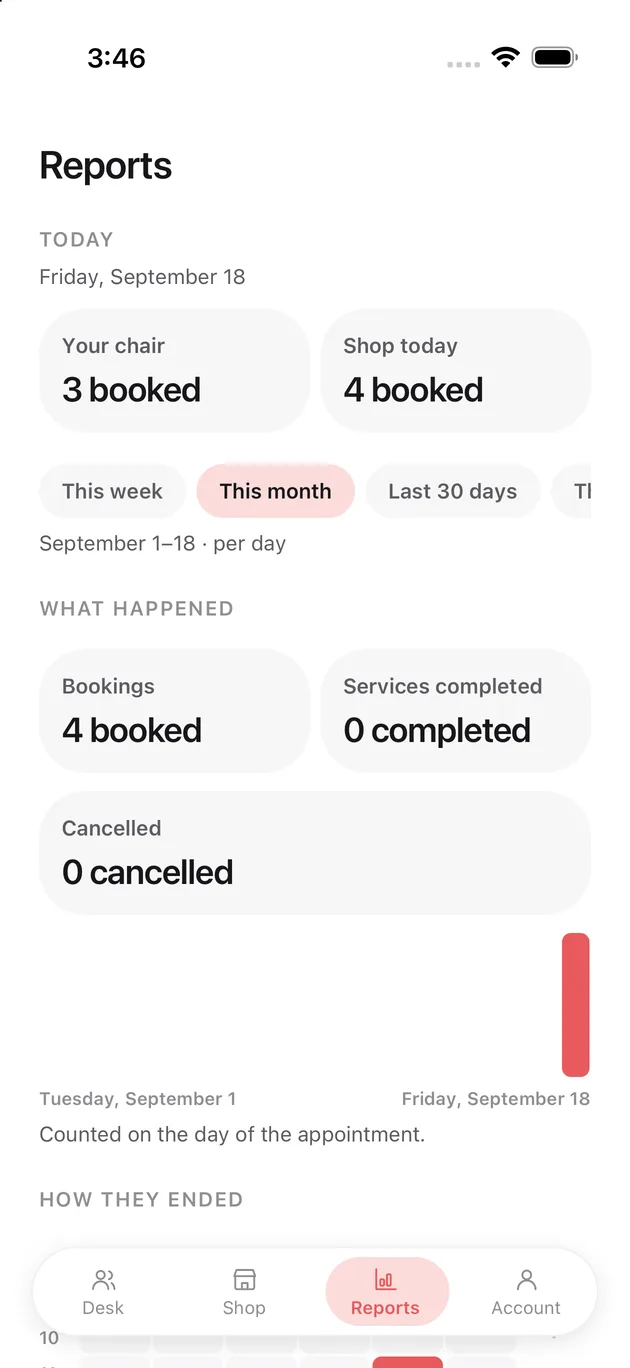
The top of the report
Today first: what is in your chair, and what is in the shop. Then a period, and what happened in it.
Bookings, services completed and cancellations are counted on the day of the appointment, not the day somebody booked.
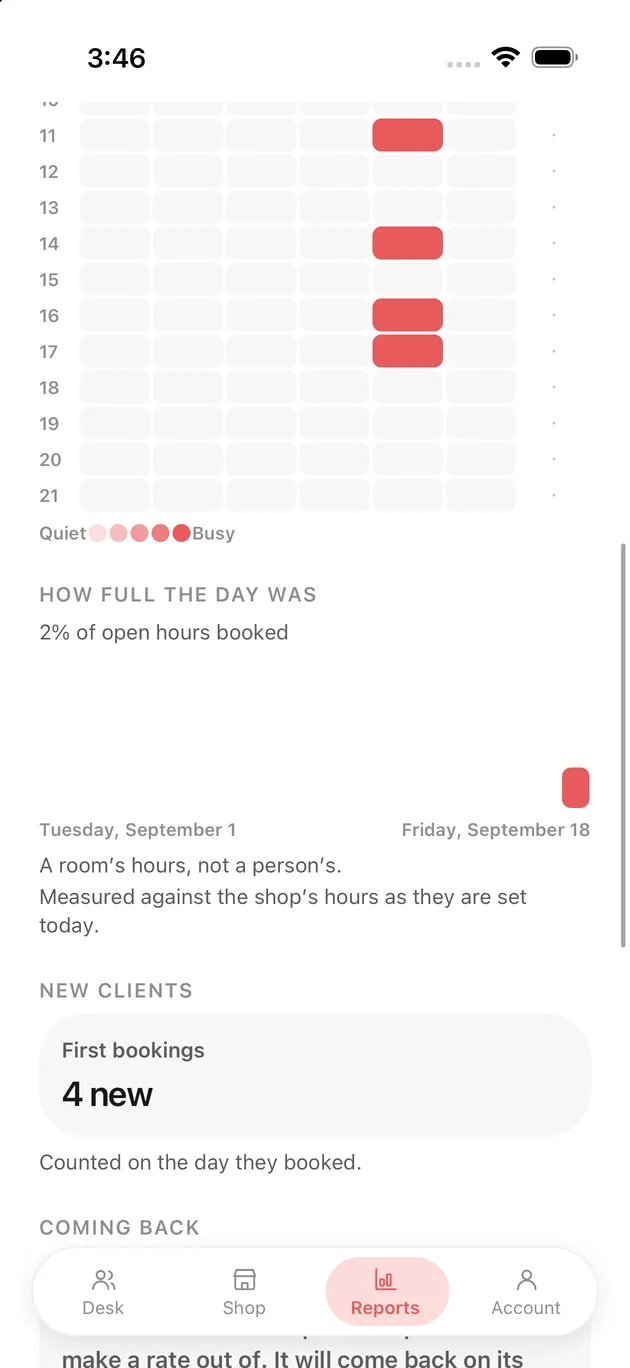
The shape of the week
The grid is the shop's hours with the booked ones shaded, so a quiet Tuesday morning is visible without reading a number.
How full the day was measures against the shop's hours as they are set today. Change the opening hours and this figure moves, which is worth knowing before you read too much into it.
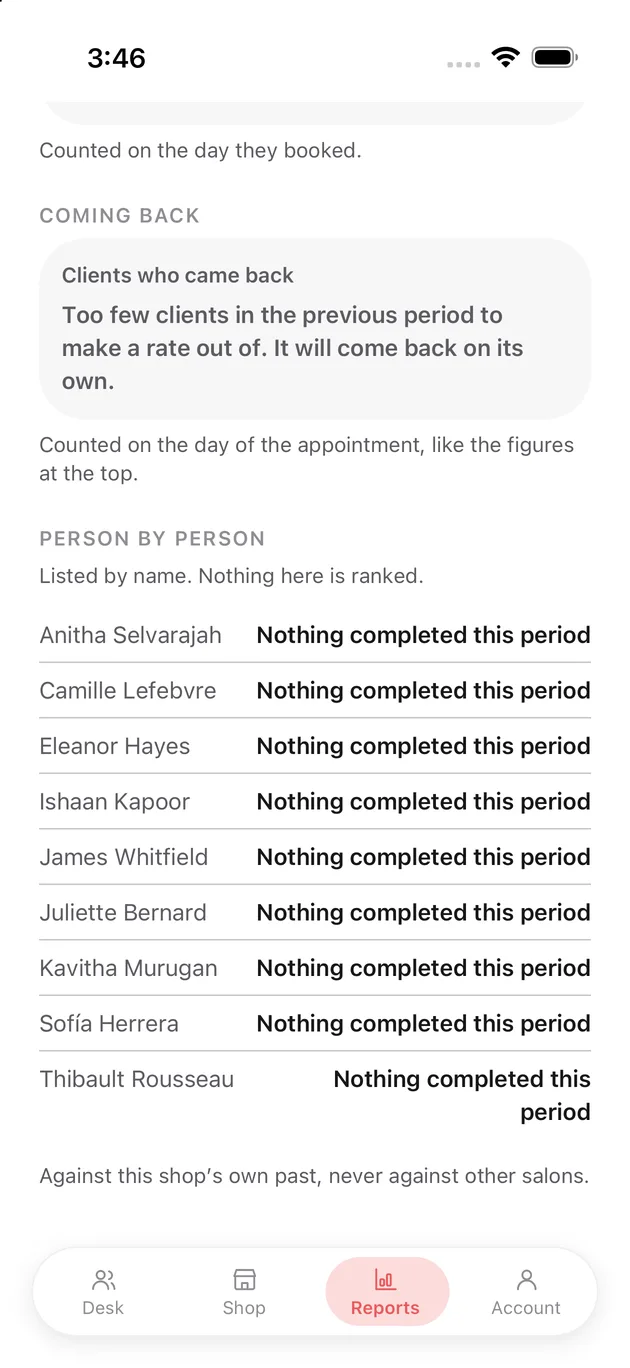
Person by person
Listed by name. Nothing here is ranked, and the figures are against this shop's own past rather than against other salons.
Clients who came back stays silent until there is enough history to make a rate out of, rather than printing a number built on four visits.
Account and settings
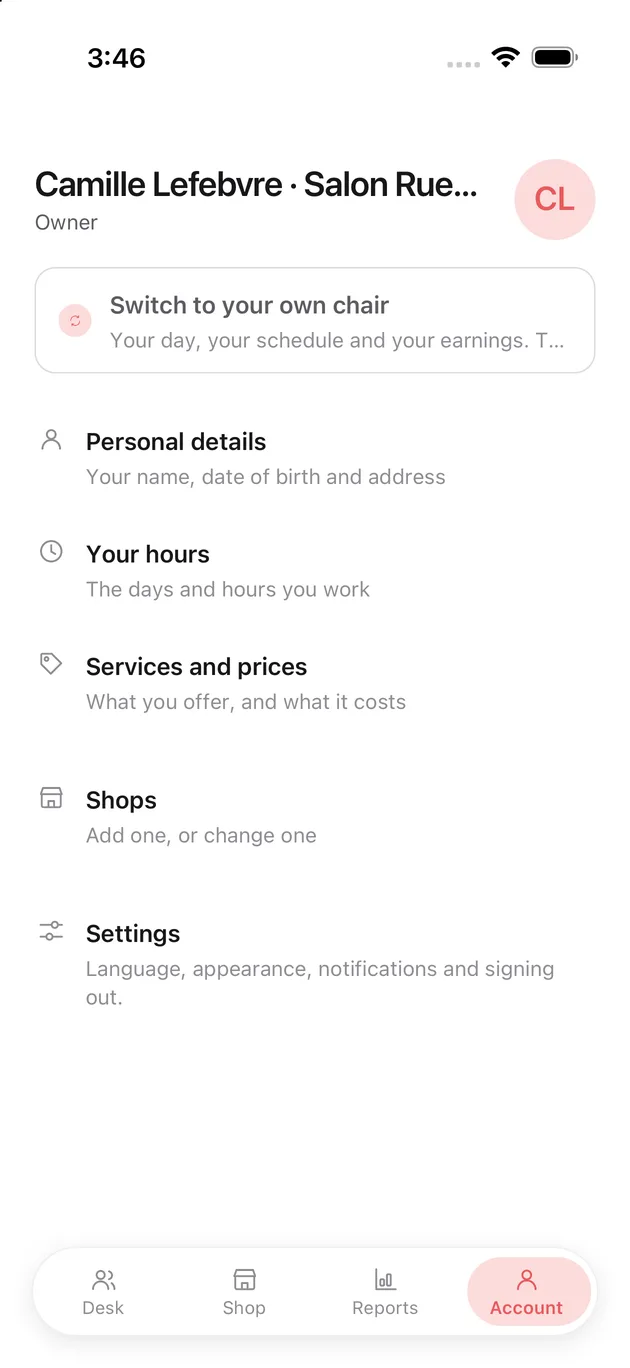
The Account tab
Your own record, not the shop's. The card at the top is the switch between the shop and your own chair, and it is only there for an owner who holds one.
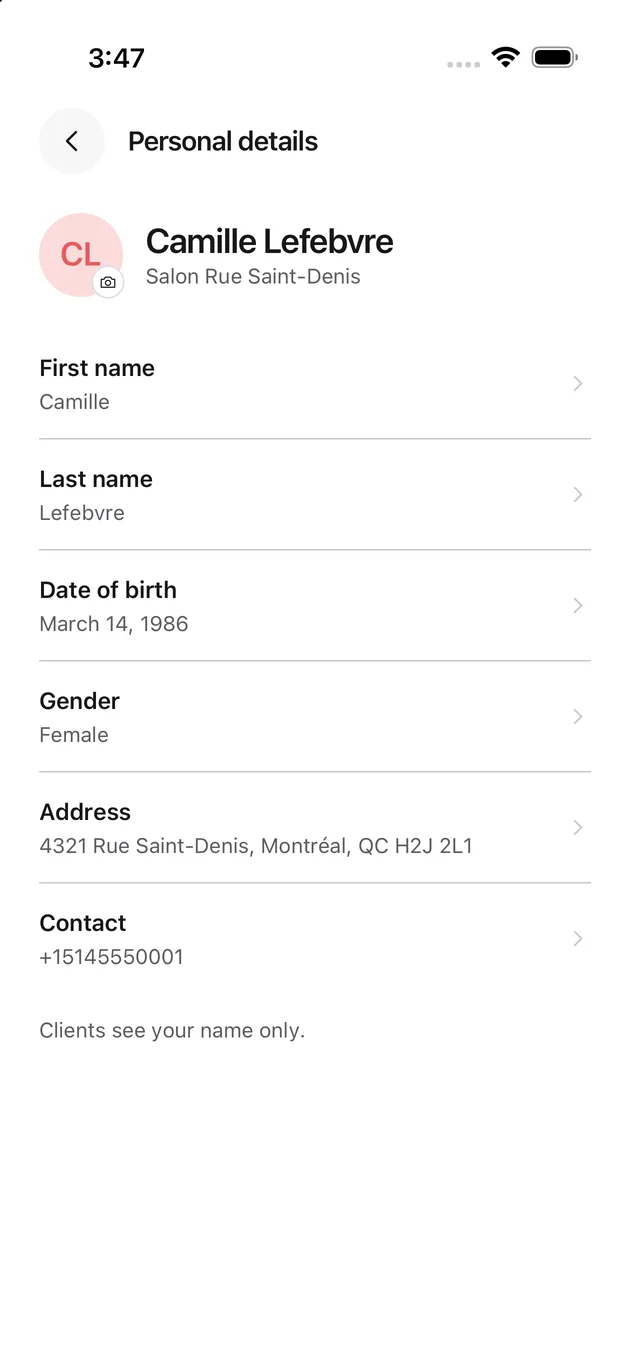
Personal details
Everything you entered when you first signed in, each on its own row.
Clients see your name. Nothing else on this page reaches them.
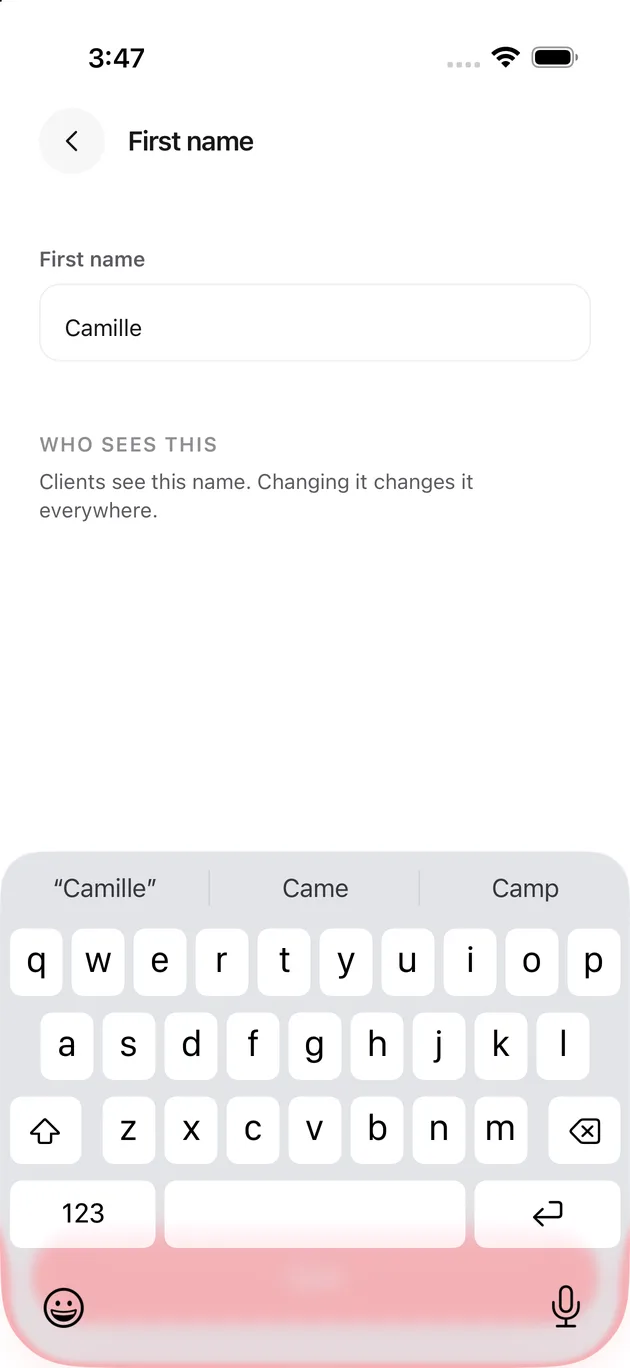
Changing one of them
One field to a screen, with a line saying who sees it. Changing your name changes it everywhere, including on bookings already made.
Your hours
The days and hours you work. Clients only ever see the overlap between this and the shop's own hours.
I'm off right now stops anybody booking you from this moment. Appointments you already have stay exactly where they are.
One of your days
Same shape as the shop's day screen, pointed at your week. Add a second window for a split day.
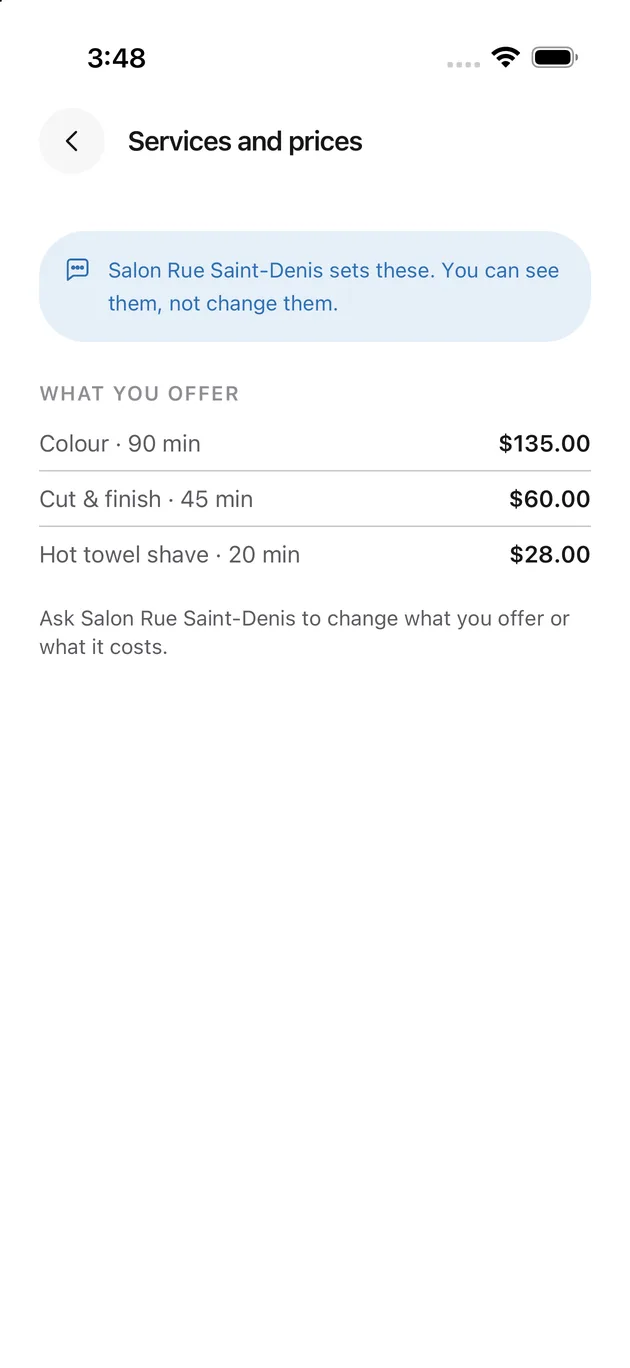
Services and prices
What you offer and what it costs. The shop sets these, so the screen shows them and does not let you change them. Ask the owner.
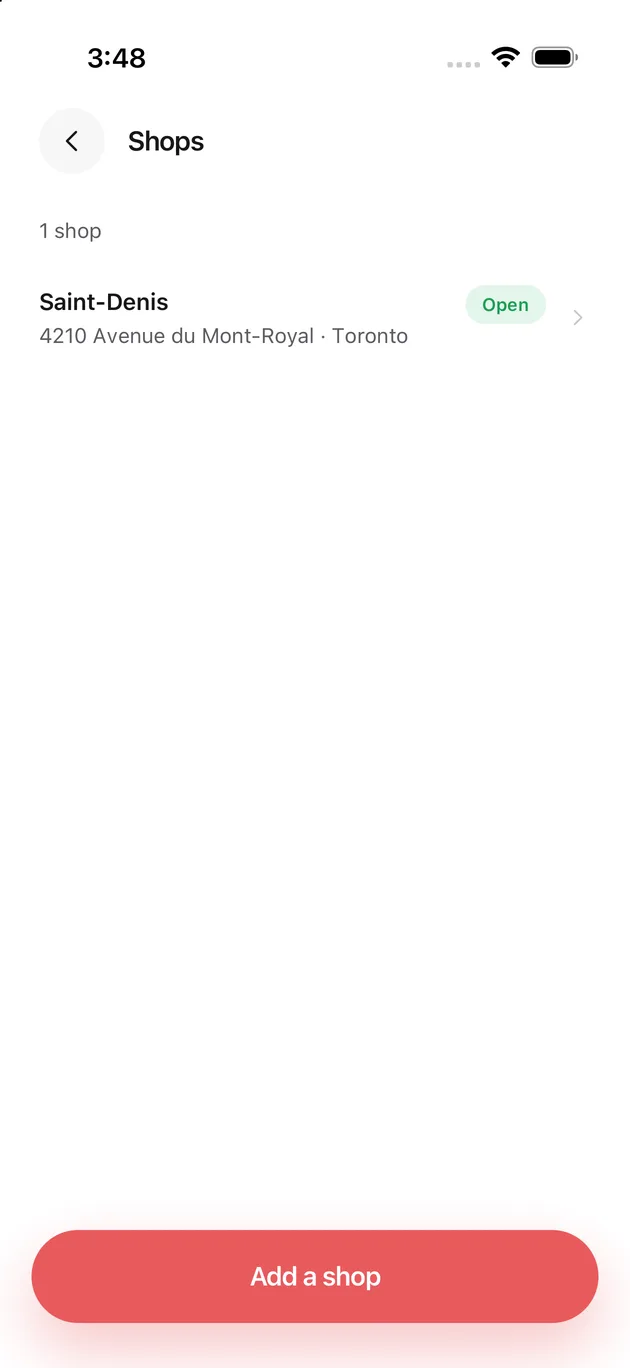
Shops
Owners only. Every shop the business runs, with whether each is open.
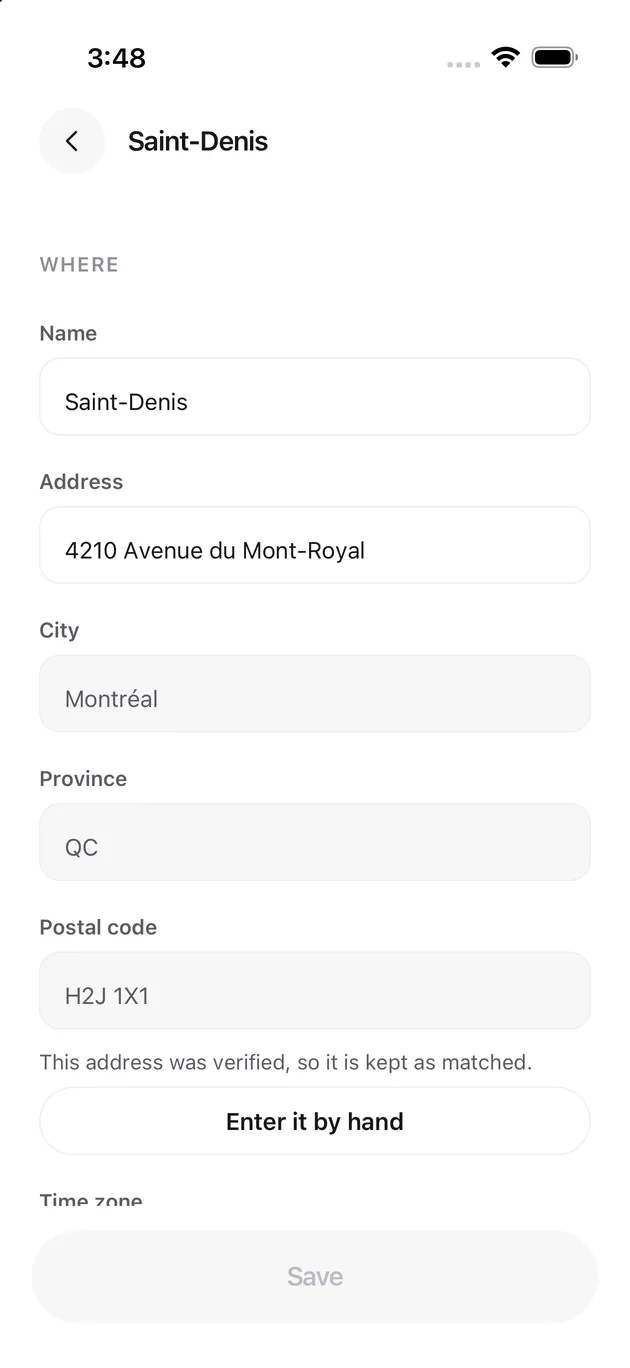
One shop
Rename it or re-address it. A verified address keeps its city, province and postal code as matched, and Enter it by hand is the escape hatch.
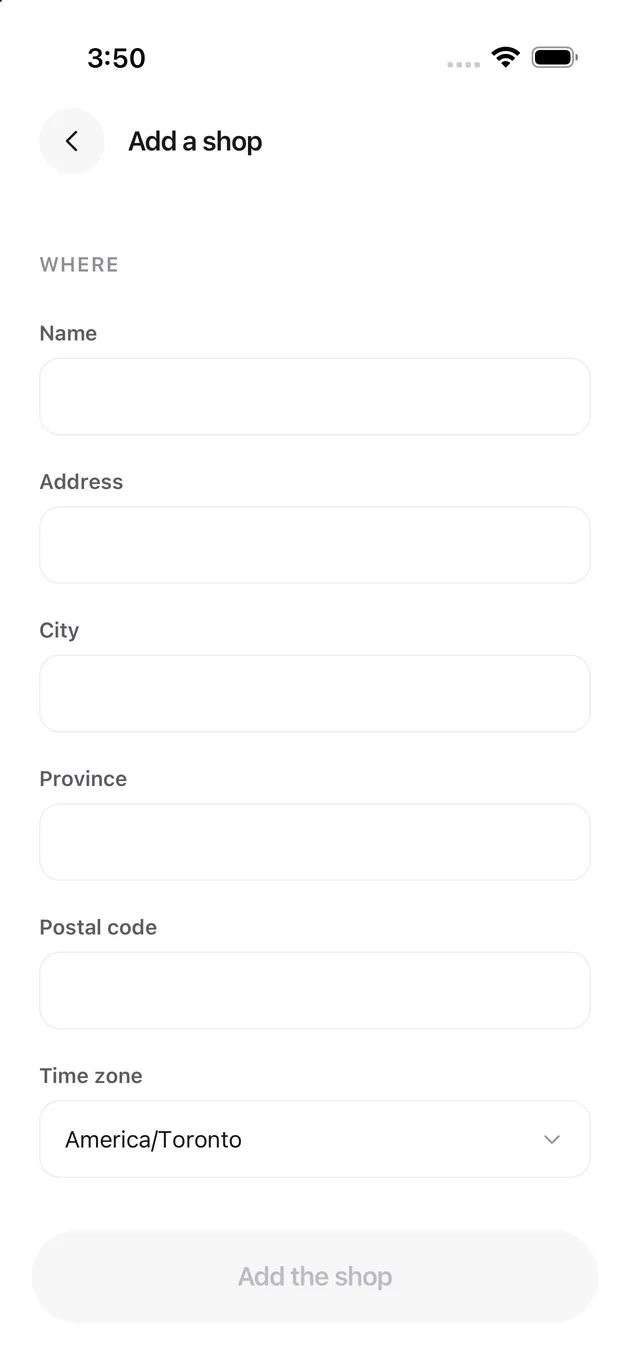
Add a shop
A second location, with its own address, its own time zone and the option to copy the first one's hours.
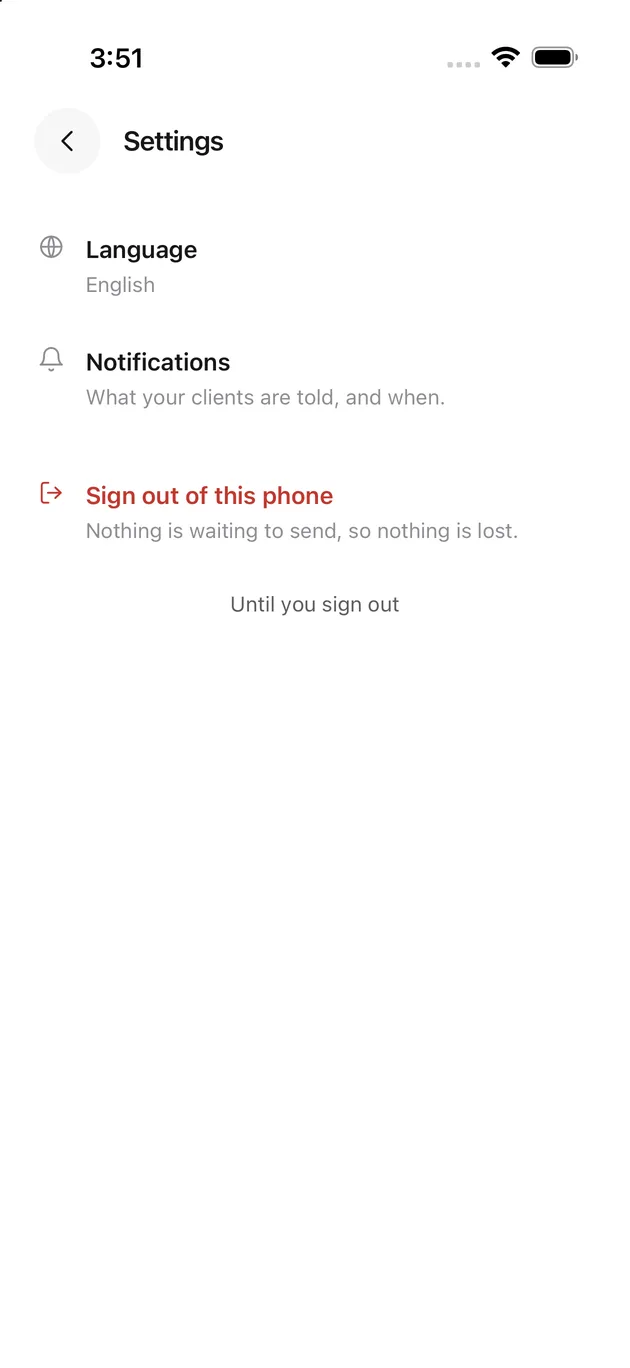
Settings
Language, what your clients are told, and signing out.
Sign out of this phone says whether anything is still waiting to send before you do it.
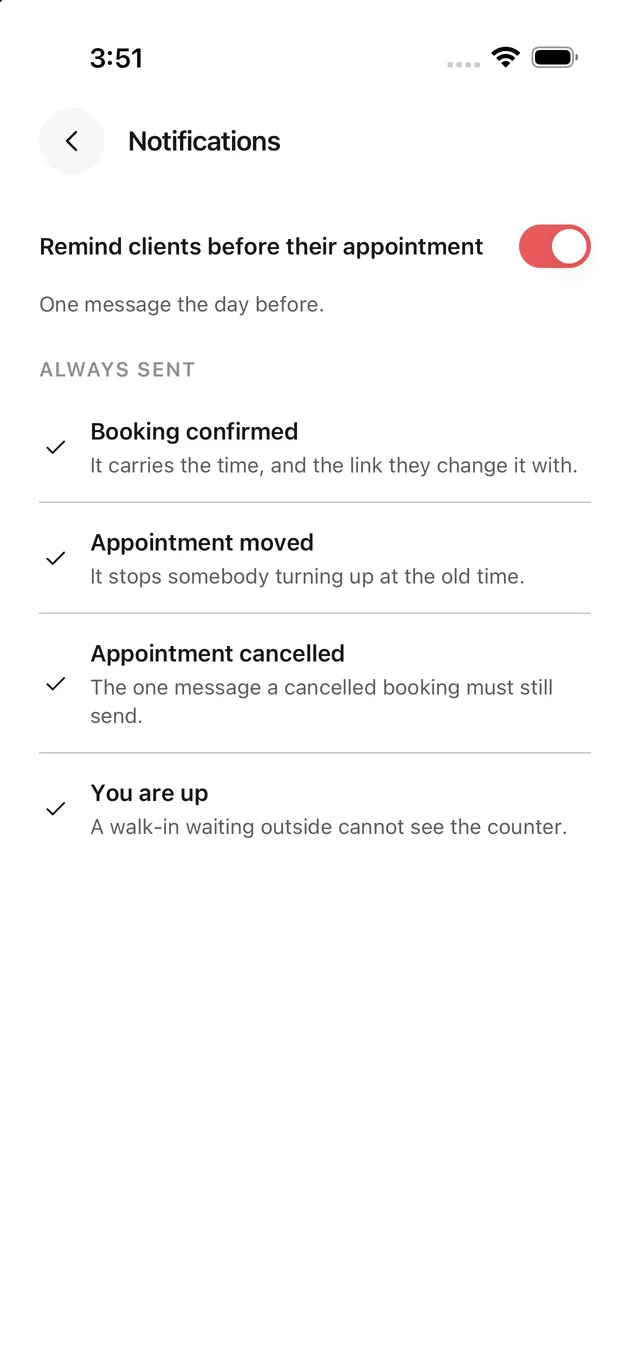
Notifications
The reminder the day before is the one you control. The four beneath it always go, and each line says why.
A cancellation text is the one message a cancelled booking must still send, which is why it is not a choice.
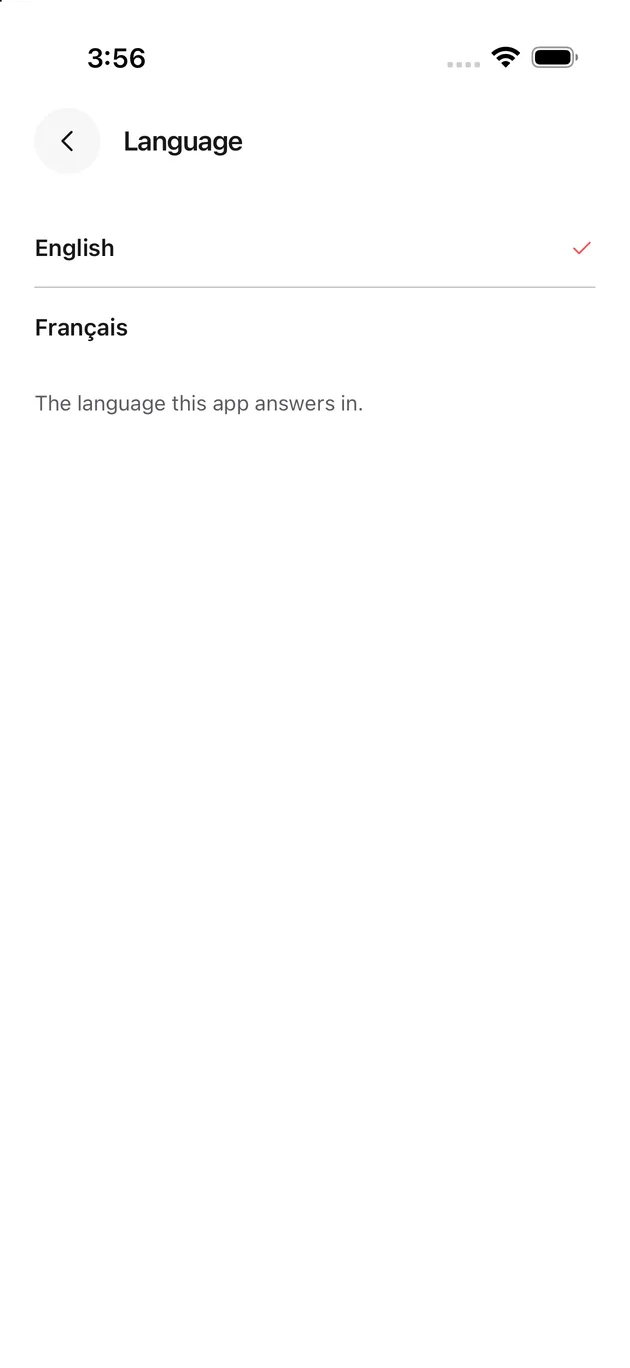
Language
The language the app answers in. It does not change what your clients are texted; that follows the language each client chose.
Working a chair
This is the other half of the app. An owner reaches it through Switch to your own chair on the Account tab; a stylist is simply here.
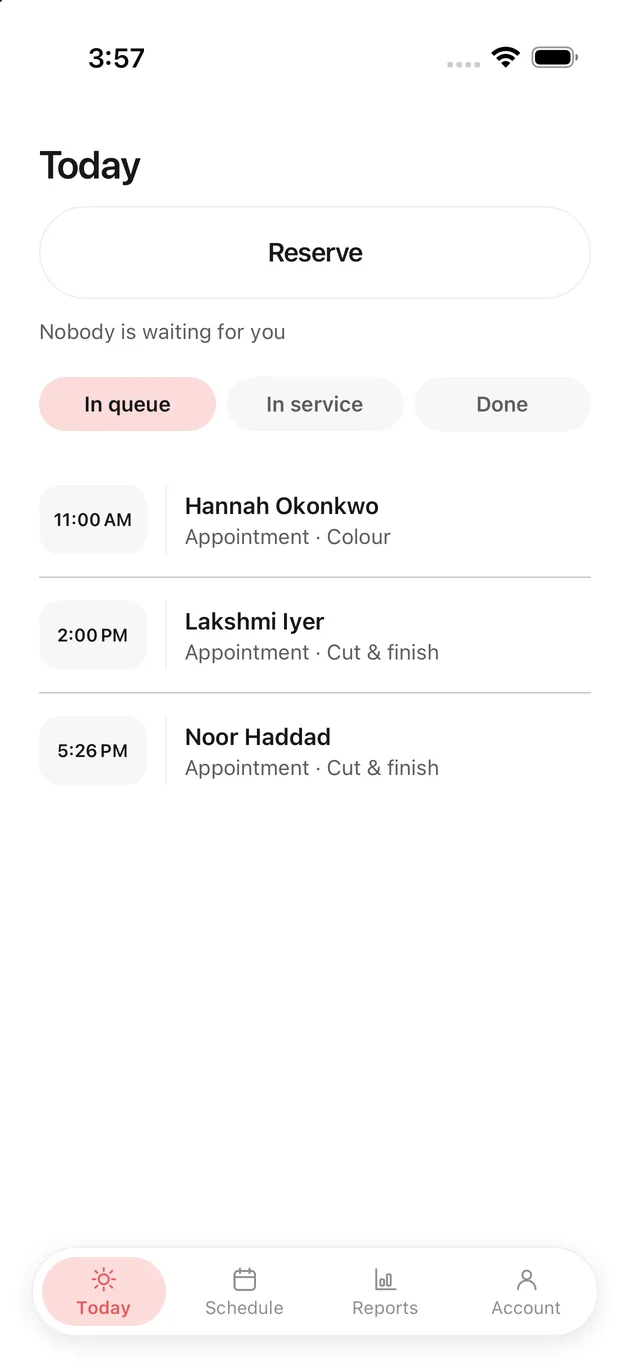
Today
Your day and nobody else's, in the same three tabs the counter uses. The line above them answers the question you opened the app to ask: is anybody waiting for me.
Reserve is here too, so a stylist can put somebody in the queue without going to the counter.
Opening a client
Unlike the counter's sheet, this one has buttons, because this is your chair.
Start begins the service. Reschedule opens the timeline. Open the appointment goes to the full page.
In service
Once started, they move here and the box on the left shows the booked length. The row says when you started.
Finishing
The sheet now offers one thing: finish. It also shows how long they have actually been in the chair, which is the number the report compares against the booked one.
Done
Served, with the time you finished. The client's history and your report both pick it up from here.
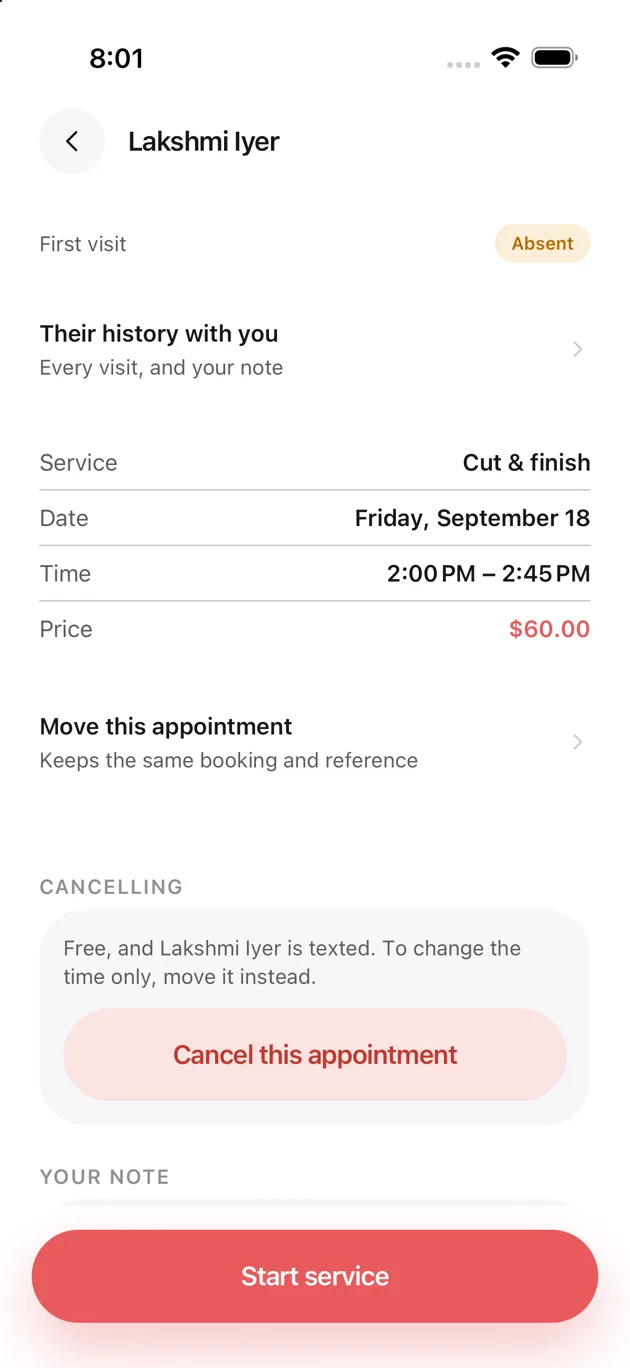
The appointment
Everything about one booking: the service, the day, the time and the price. The badge at the top says this is a first visit.
Move this appointment keeps the same booking and the same reference, so the client's link still works.
Cancelling is free and texts the client. If you only want to change the time, move it instead.
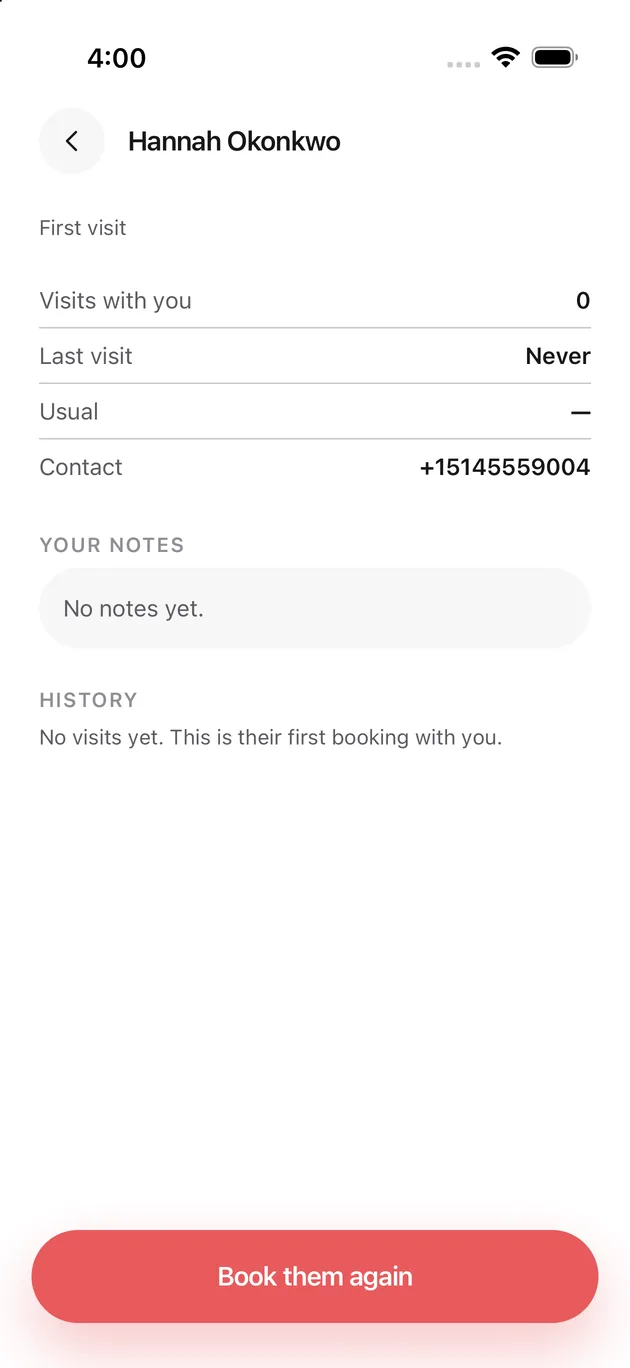
The client
How many times they have been to you, when they last came, what they usually have, and your own notes. A first-timer reads exactly like this one.
Book them again starts a new booking with them already filled in.
Moving an appointment
The week across the top, the day underneath. The red block is the appointment you are moving; the grey ones are what else is on that day.
Drag it or tap a new time, then save. The client is texted so nobody turns up at the old time.
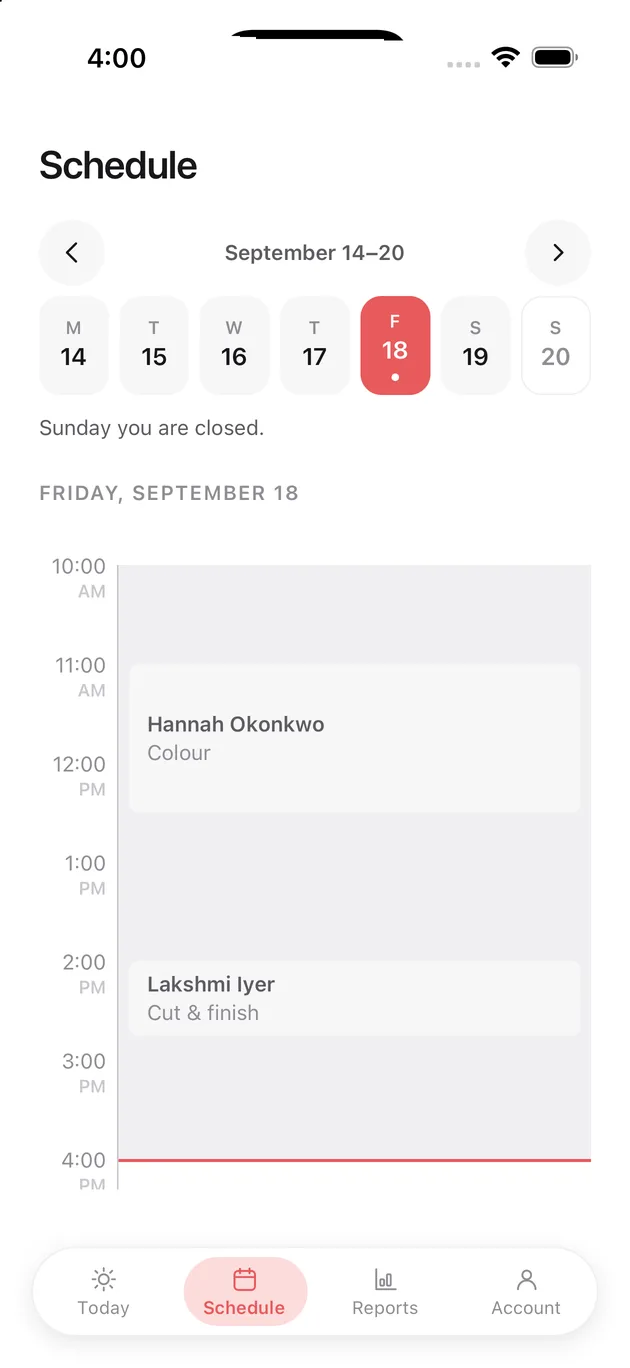
Schedule
Your week, one day at a time. The dot under a date means something is on it, and the line across the timeline is now.
Days the shop is closed say so rather than drawing an empty grid.
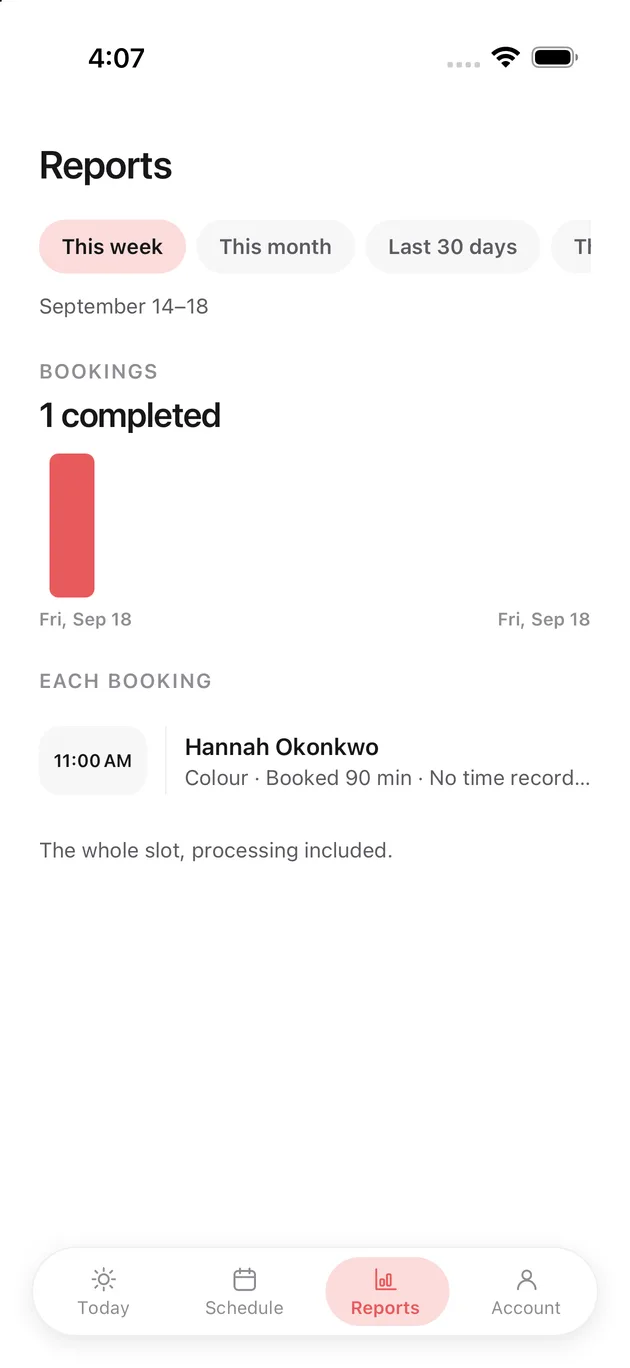
Your reports
Your own numbers, over whichever period you pick. A booking lands here once it is complete, and each row shows what was booked against what was recorded.
The figure is the whole slot, processing time included.
If you are not the owner
Your day
The same Today screen, with the same three tabs, drawn for somebody with nothing on yet.
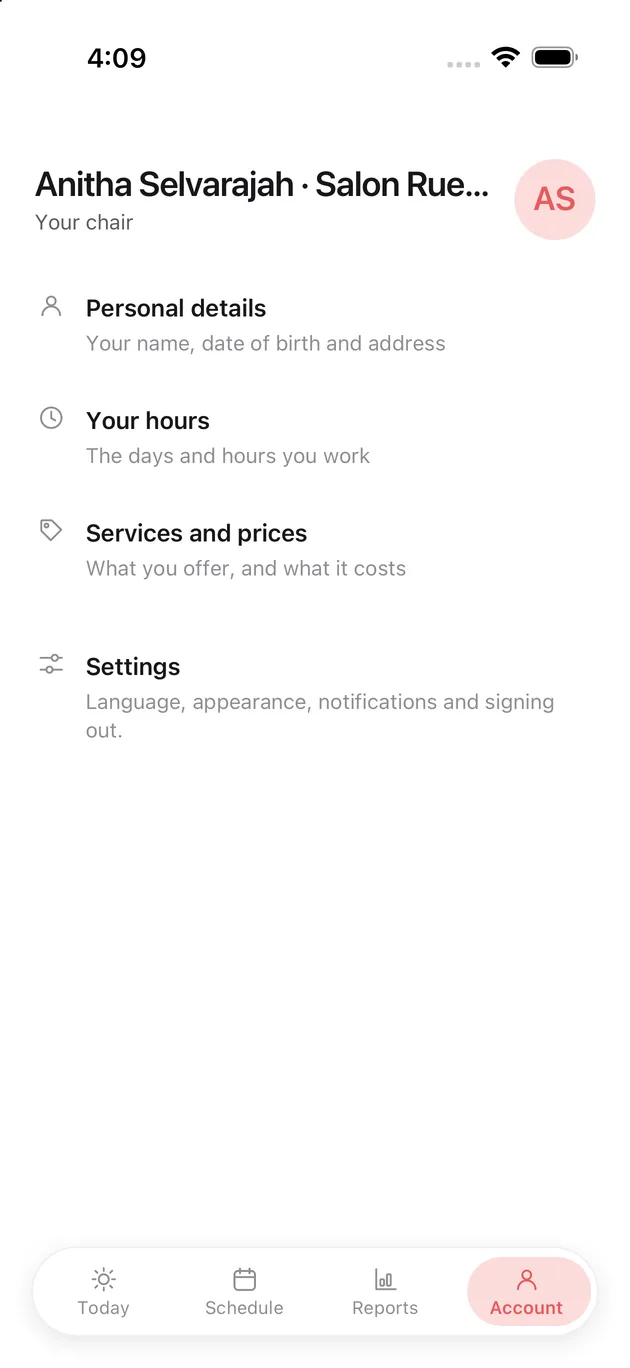
Your account
Four rows instead of five. No Shops, and no switch to the counter, because there is no counter on this side of the door.
The line under your name says Your chair rather than Owner. That is the whole difference in the app, and it is decided by the shop, not by you.
If something goes wrong
The app says there is no connection. It is not holding a cached copy of your day, so a blank screen during an outage is honest rather than broken. It comes back on its own.
You signed in and there is nothing there. You have no chair at any shop. Ask whoever runs the shop to add your number.
The code never arrives. Wait for the resend counter, then ask again. If a second one does not come, the number on file is probably not the one in your hand.
You cannot change a price or a service. Only the owner can. This is not a permission that can be granted.